
Why attachments create risk
Sending a file attachment from Outlook feels simple. The user chooses a document, sends the email, and the recipient receives a copy. That simplicity is why attachments remain common even in organizations that already use SharePoint, OneDrive, and Microsoft Teams.
The problem is that every attachment is a separate copy. The file leaves its managed location and becomes another version stored in one or more mailboxes. If the recipient edits it, forwards it, downloads it, or saves it under a new name, the original document history is no longer enough to explain what happened.
This creates everyday confusion first. Teams ask which version is current. People compare files manually. A manager sends an old proposal because it was the first one found in Outlook. A customer receives a file that should have been replaced. A project team works from an attachment that is no longer the approved document.
There is also a security problem. Once a file is sent as an attachment, the sender cannot reliably revoke it, update it, audit later access, or make sure the recipient stops using it. The email message may be protected by mailbox controls, but the attached copy has already been distributed.
Attachments turn one managed document into many unmanaged copies. Links keep collaboration connected to the file that the organization can still control.
SharePoint links vs email attachments
Secure file sharing in Outlook does not mean eliminating email. It means changing what the email carries. Instead of carrying a copy of the file, the message carries a link to the file stored in SharePoint or OneDrive.
That difference changes the control model:
- With an attachment: the file is copied into the email and can spread independently.
- With a SharePoint or OneDrive link: the file stays in Microsoft 365 and the email points recipients back to it.
For internal collaboration, links are usually the better default. Users open the same file, see the current version, and work under the permissions already managed in Microsoft 365. The organization keeps more control over access, sharing, version history, retention, and document lifecycle.
For external collaboration, links can still be useful when the organization allows external sharing and the recipient can authenticate or use the configured link type. The details depend on tenant settings, sensitivity, recipient relationship, and business process. The important point is to make the choice deliberately instead of defaulting to attachments because they feel faster.
This connects with a wider Microsoft 365 pattern: files should live in managed storage, and Outlook should help users find, save, and share them. For related background, see Outlook email management in Microsoft 365.
What this looks like in Outlook
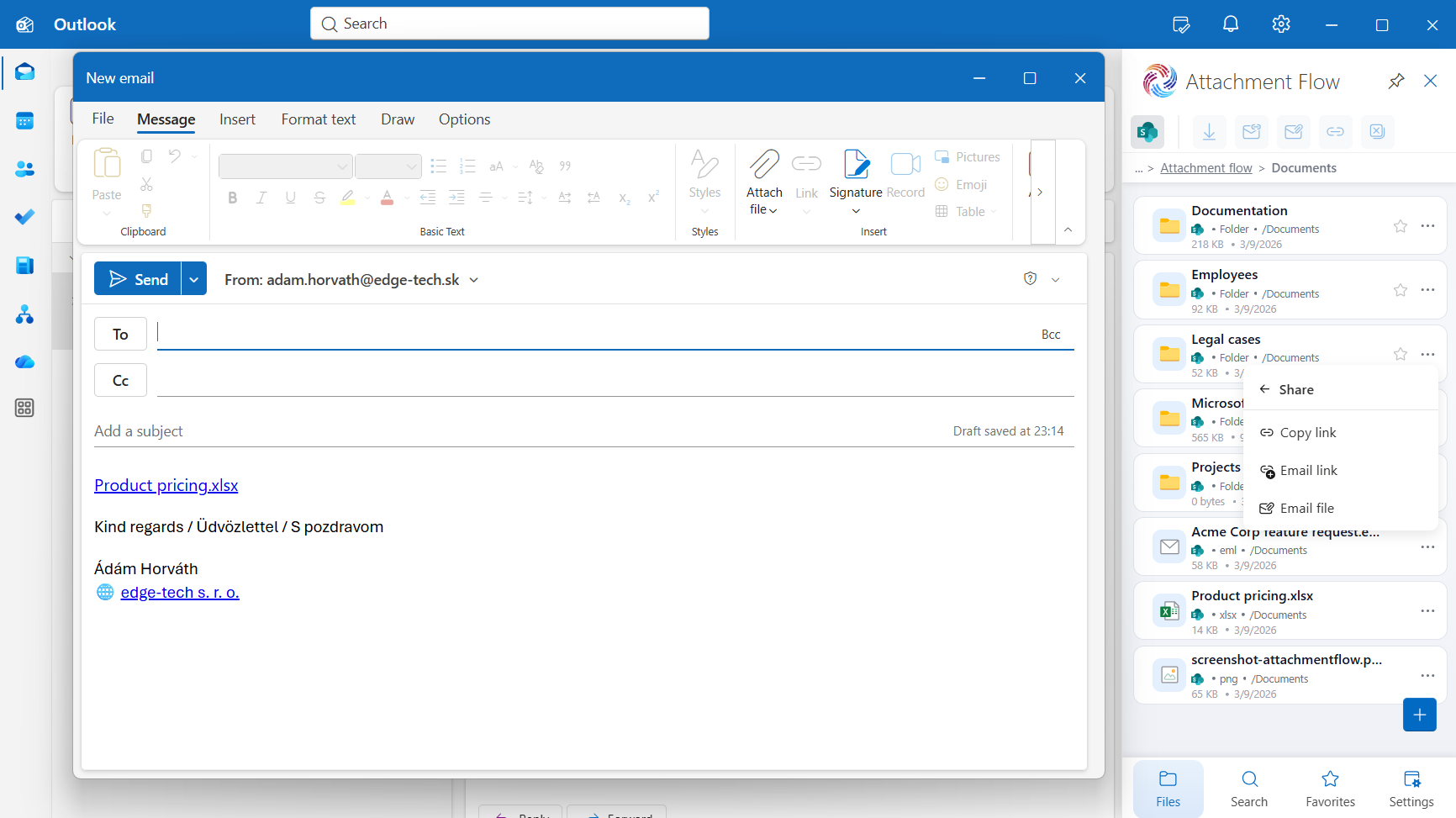
In practice, a user should be able to work from the email they are writing, choose a file from SharePoint or OneDrive, and insert a secure link into the message. They should not need to download the file, attach it manually, and create another unmanaged copy.
The same workflow should also support searching and browsing. A user may not remember the exact file name. They may know the customer, project, team, folder, or recent context. If they can find the file from Outlook, they are less likely to ask someone to resend it or attach an outdated local version.
Attachment Flow supports this Outlook-based workflow by helping users browse Microsoft 365 locations, search for files, and choose how to share the file from the email context.
Security benefits of link sharing
SharePoint and OneDrive links are not automatically perfect. They still depend on the organization's sharing settings, user choices, governance rules, and permissions. But they give the business a better control surface than traditional attachments.
- Centralized access control: the file remains in SharePoint or OneDrive, where permissions can be reviewed and changed.
- Revocation: access to a shared link can often be removed or changed later, while an attachment copy cannot be pulled back from an inbox.
- Version consistency: recipients open the managed file instead of a copy that may already be outdated.
- Reduced duplicate storage: fewer file copies are created across mailboxes, downloads, desktop folders, and forwarded emails.
- Better governance: retention, sensitivity labels, auditing, and lifecycle processes work more reliably when documents stay in Microsoft 365 storage.
- Clearer collaboration: comments, changes, and coauthoring happen around the same document instead of scattered attachment versions.
The result is not only better security. It is also better productivity because users stop wasting time reconciling copies. The article Stop downloading Microsoft 365 files just to email them again covers this duplicate-file problem in more detail.
When attachments still make sense
A realistic secure-sharing policy should not pretend attachments will disappear. There are valid cases where an attachment is still the right option.
Attachments may make sense when:
- The recipient cannot access Microsoft 365 links because of technical or contractual limitations.
- A final static copy must be submitted to an external portal, authority, customer, or vendor process.
- The file is intentionally being sent as a snapshot rather than as a collaborative working document.
- The organization does not allow external link sharing for that type of content.
- The recipient needs a file format that must be imported into another system.
The point is not "links always, attachments never." The better rule is to use links when the file should remain controlled and current, and use attachments only when a separate copy is required.
A practical sharing policy
Companies often publish security policies that are technically correct but hard for users to apply while writing an email. A useful Outlook file-sharing policy should be short enough to remember and specific enough to guide behavior.
Simple Microsoft 365 sharing rule
- For internal collaboration, use SharePoint or OneDrive links.
- For external collaboration, use approved link settings when the recipient should access the controlled file.
- Use attachments only when a separate copy is required by the business process.
That rule is easy to explain because it maps to real risk. Internal teams usually need the current version, so links should be the default. External recipients may need controlled access or a final copy, so users should choose based on the sensitivity and workflow.
Teams should also agree on a few supporting habits:
- Store the file in the right SharePoint, Teams, or OneDrive location before sharing it.
- Use clear file names so recipients understand what they are opening.
- Check whether the link grants the right level of access.
- Avoid broad sharing links for sensitive files unless policy allows it.
- Save important email context when the message explains a decision, approval, or customer instruction.
The adoption problem
The main reason users keep sending attachments is not that they reject security. It is that attachments are fast, familiar, and visible in the Outlook compose window. If the secure workflow requires switching to SharePoint, searching through a browser, copying a link, returning to Outlook, and checking permissions manually, many users will fall back to attaching the file.
This is why secure file sharing is partly a user-experience problem. The more steps the policy requires, the less consistent adoption becomes.
A better workflow should let users:
- Find SharePoint, Teams, and OneDrive files without leaving Outlook.
- Upload incoming or local files to the right Microsoft 365 location before sharing.
- Choose between sharing a link and attaching a copy based on the situation.
- Search managed Microsoft 365 content from the email context.
- Save important emails and attachments into the right location for later retrieval.
When users can find files from Outlook, link sharing becomes easier to sustain. The related guide on searching and retrieving Microsoft 365 content from Outlook explains why retrieval is part of the sharing workflow.
How Attachment Flow helps
Attachment Flow brings Microsoft 365 file workflows into Outlook. Users can browse SharePoint sites, Teams files, and OneDrive locations, search for the right document, and share it from the email they are working on.
That matters because secure behavior has to be practical. If a user can select a managed file and insert a link without leaving Outlook, they are less likely to download a local copy and attach it manually. If they receive an attachment that should become part of the company record, they can save it into Microsoft 365 instead of leaving it in the mailbox.
Attachment Flow supports workflows such as:
- Sharing SharePoint or OneDrive files from Outlook as links.
- Attaching a copy when the business process requires it.
- Uploading files to SharePoint or OneDrive before sharing.
- Finding files across Microsoft 365 storage locations from Outlook.
- Saving important email attachments to managed document libraries.
For document-heavy teams, this also improves records management. Files are more likely to stay in the right Microsoft 365 location, and links point people back to the controlled source. If SharePoint metadata is part of the document process, the related article on saving Outlook attachments with SharePoint metadata explains how context can be captured during upload.
FAQ
Are SharePoint links more secure than email attachments?
SharePoint and OneDrive links are usually more secure for Microsoft 365 collaboration because the file remains in the tenant, permissions can be managed centrally, access can be revoked, and users can work from the current version instead of duplicate email copies.
When should I still send a file attachment?
Attachments can still make sense when the recipient cannot access Microsoft 365 links, when a final static copy is required, or when a specific external process requires an attached file. Internal collaboration should usually use links.
How do secure links reduce version confusion?
Secure links point users back to the centrally stored SharePoint or OneDrive file. That reduces the number of independent copies in inboxes and helps everyone open the same current document.
Can Outlook users share SharePoint and OneDrive links without opening a browser?
Yes, with the right Outlook add-in workflow. Attachment Flow helps users browse, search, and share Microsoft 365 files directly from Outlook.
What is the best default policy for internal file sharing?
For internal collaboration, use links to files stored in SharePoint, Teams, or OneDrive. Use attachments only when a separate copy is required.
Final thought
Attachments create copies. Links preserve control.
For Microsoft 365 organizations, secure file sharing in Outlook should keep documents in SharePoint or OneDrive whenever the file needs version history, access control, auditability, or continued collaboration. Attachments still have a place, but they should be a deliberate choice rather than the default habit.
The more this workflow fits naturally inside Outlook, the more consistently users will follow it.
Share Microsoft 365 files securely from Outlook
Use Attachment Flow to find, save, and share SharePoint, Teams, and OneDrive files without leaving Outlook.