
Installation
Administrator installation
Attachment Flow is available from Microsoft AppSource and can be deployed by a Microsoft 365 administrator from the Microsoft 365 Admin Center. During deployment, the administrator can choose whether the add-in is available to the whole organization or only to selected users or groups.
Administrator consent is required because Attachment Flow connects Outlook with Microsoft 365 files, SharePoint, OneDrive, Teams, and Teams chats through Microsoft Graph.
Easy admin consent link
If you want to grant consent before or after deployment, use the administrator consent link below.
1. Open Microsoft 365 Admin Center
Open admin.microsoft.com and sign in with a Microsoft 365 administrator account.
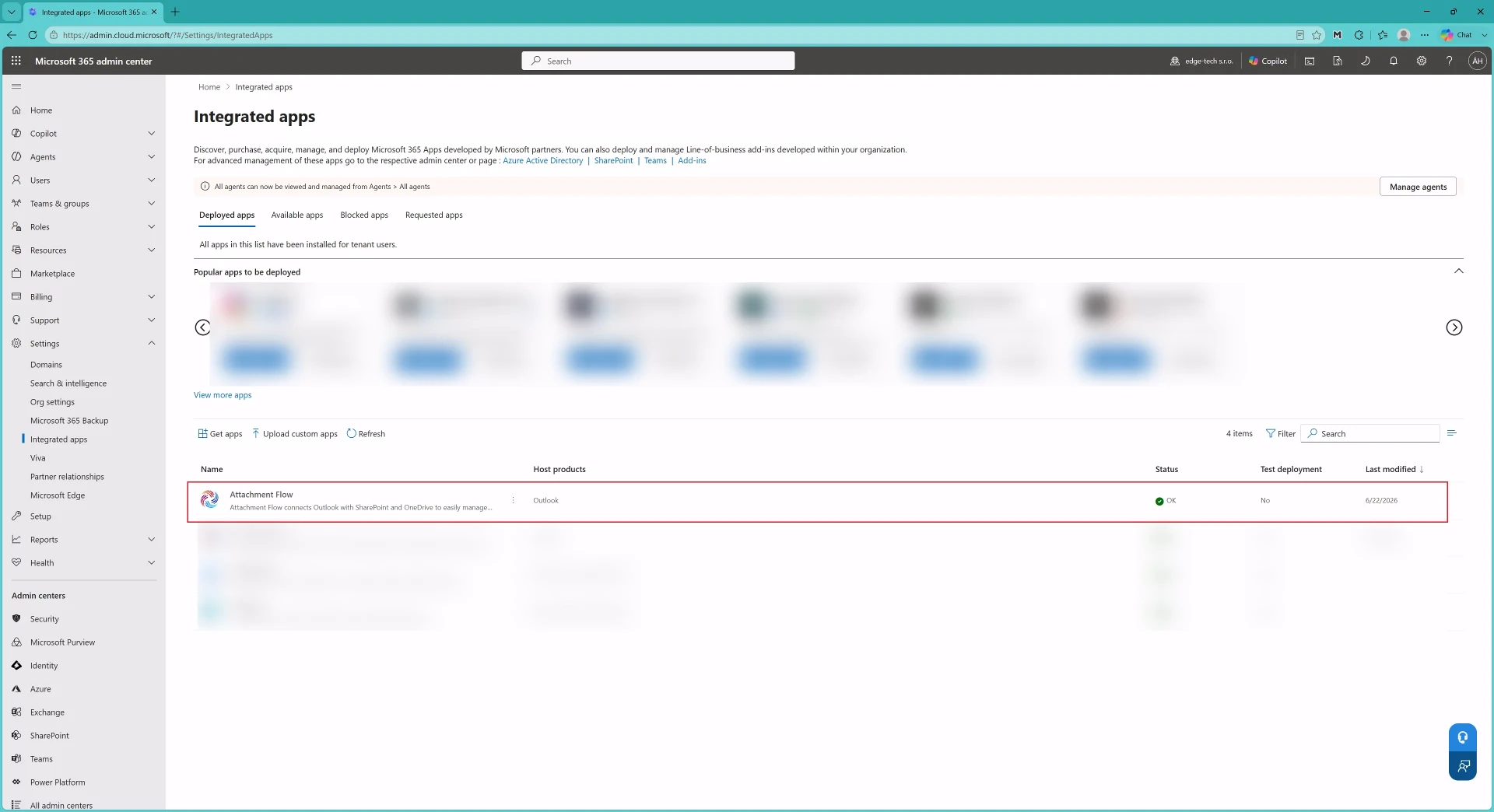
In the left navigation, open Settings and choose Integrated apps.
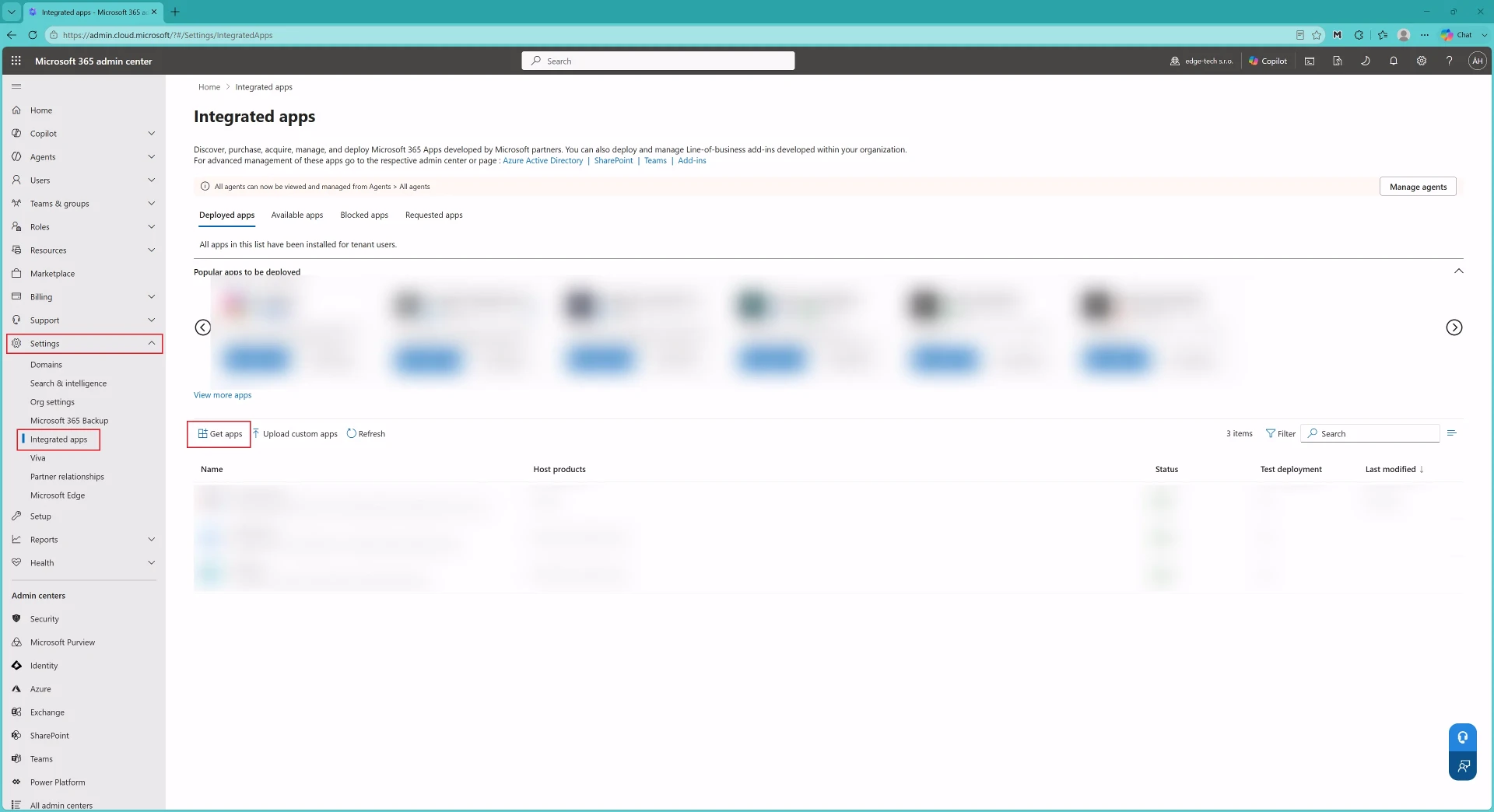
2. Open AppSource Apps
On the Integrated apps page, select Get apps. This opens the AppSource catalog for Microsoft 365 admin deployment.
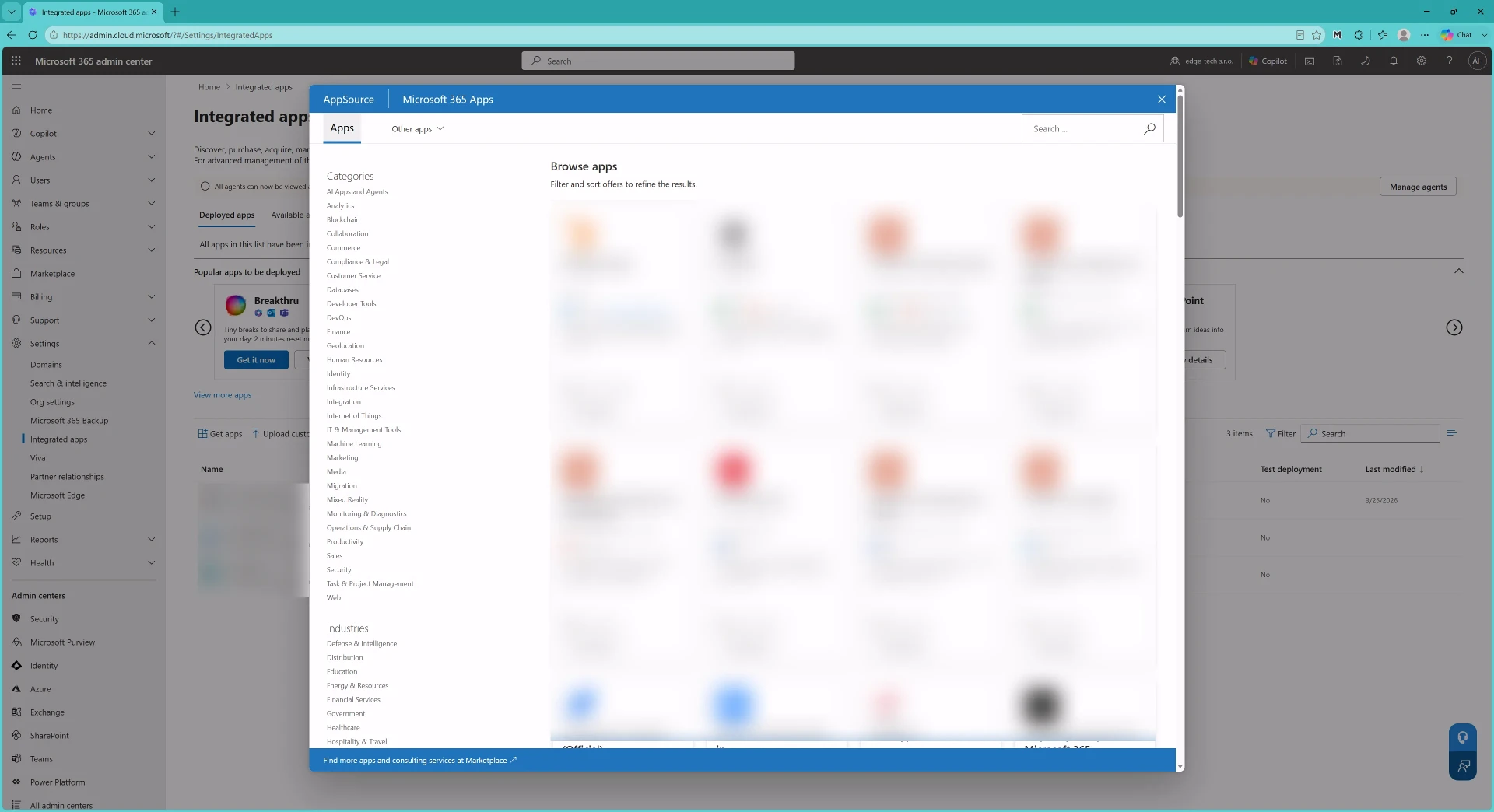
3. Find Attachment Flow
Search for Attachment Flow in AppSource and open the Attachment Flow listing.
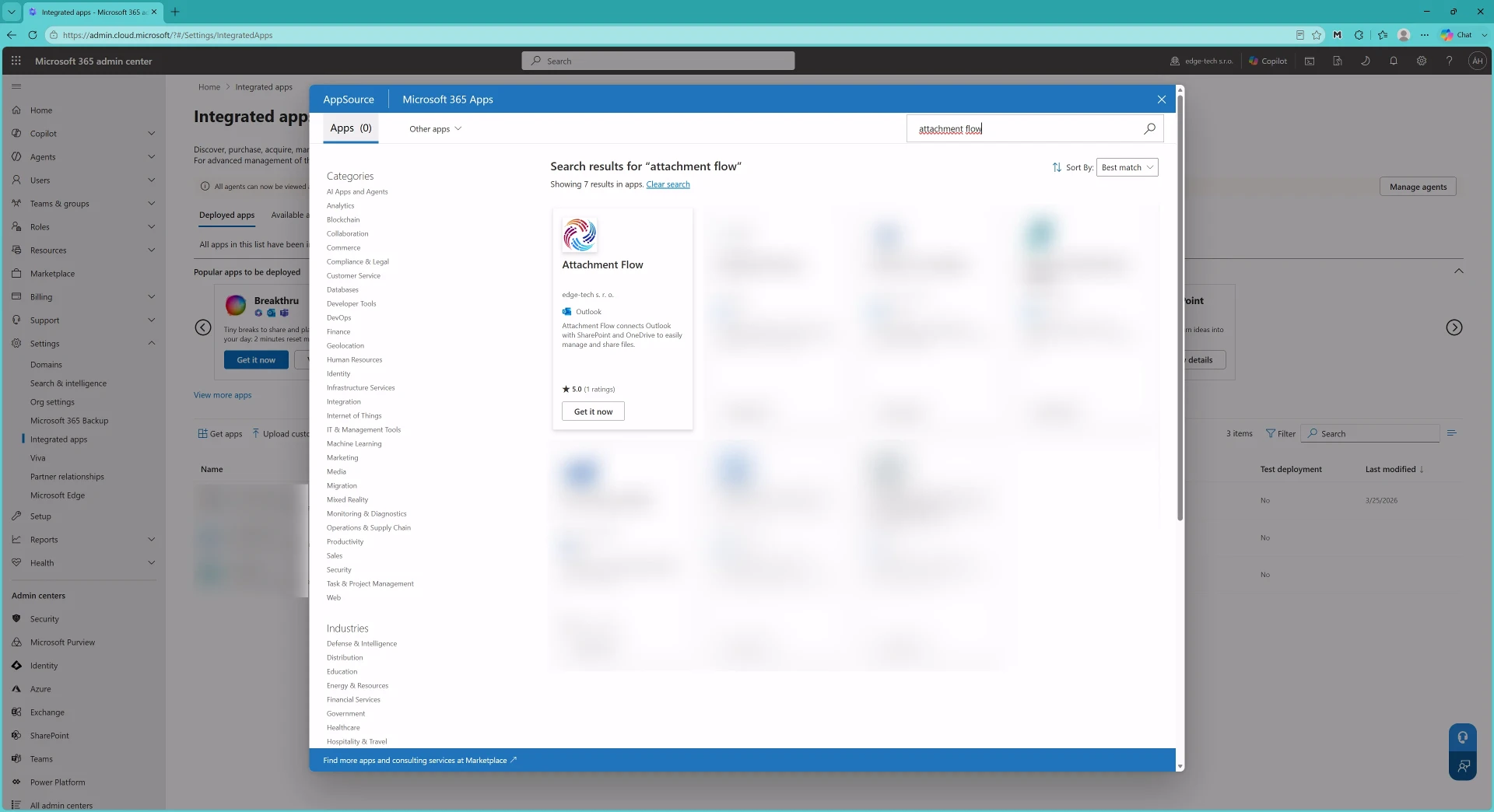
4. Start Deployment
Click Get it now, confirm the AppSource dialog, and then select Deploy to start the Microsoft 365 deployment wizard.
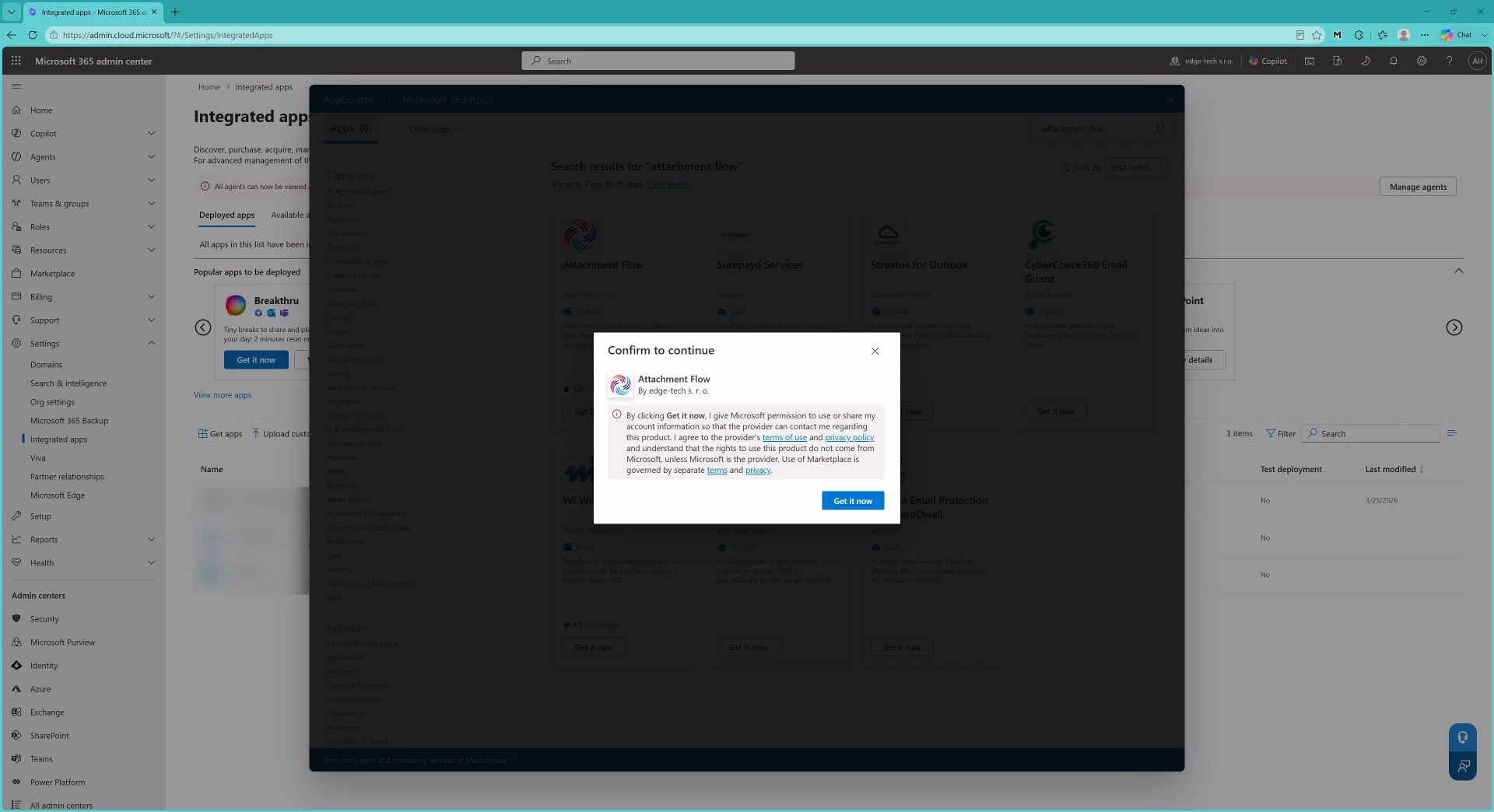
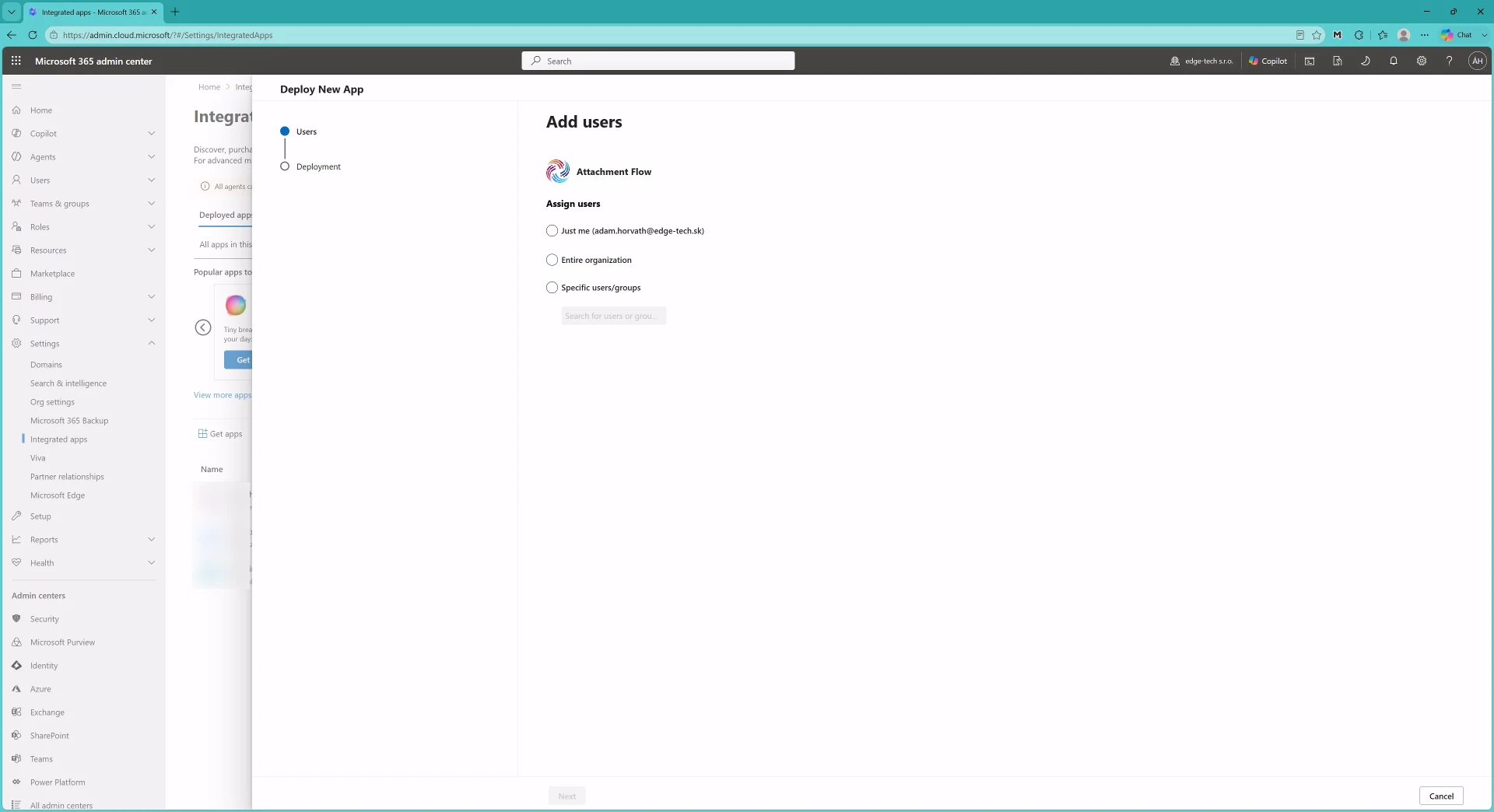
5. Choose Users
Choose who can use Attachment Flow: Entire organization, Specific users/groups, or another option shown by Microsoft 365 for your tenant.
This assignment can be changed later from Integrated apps.
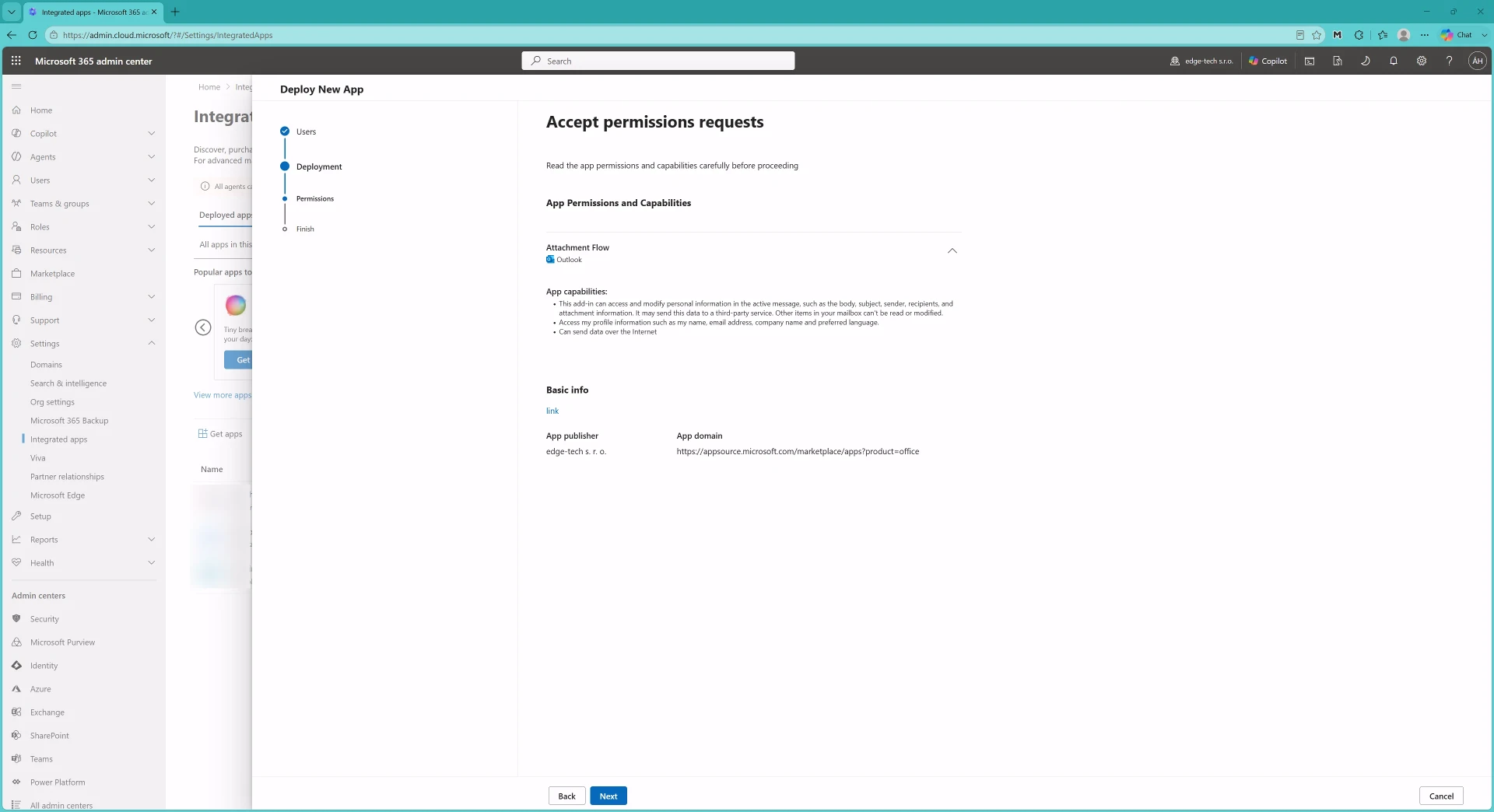
6. Review Permissions and Finish
Review the requested permissions and publisher information, then finish the deployment. If Microsoft 365 asks for administrator consent, approve it with an administrator account.
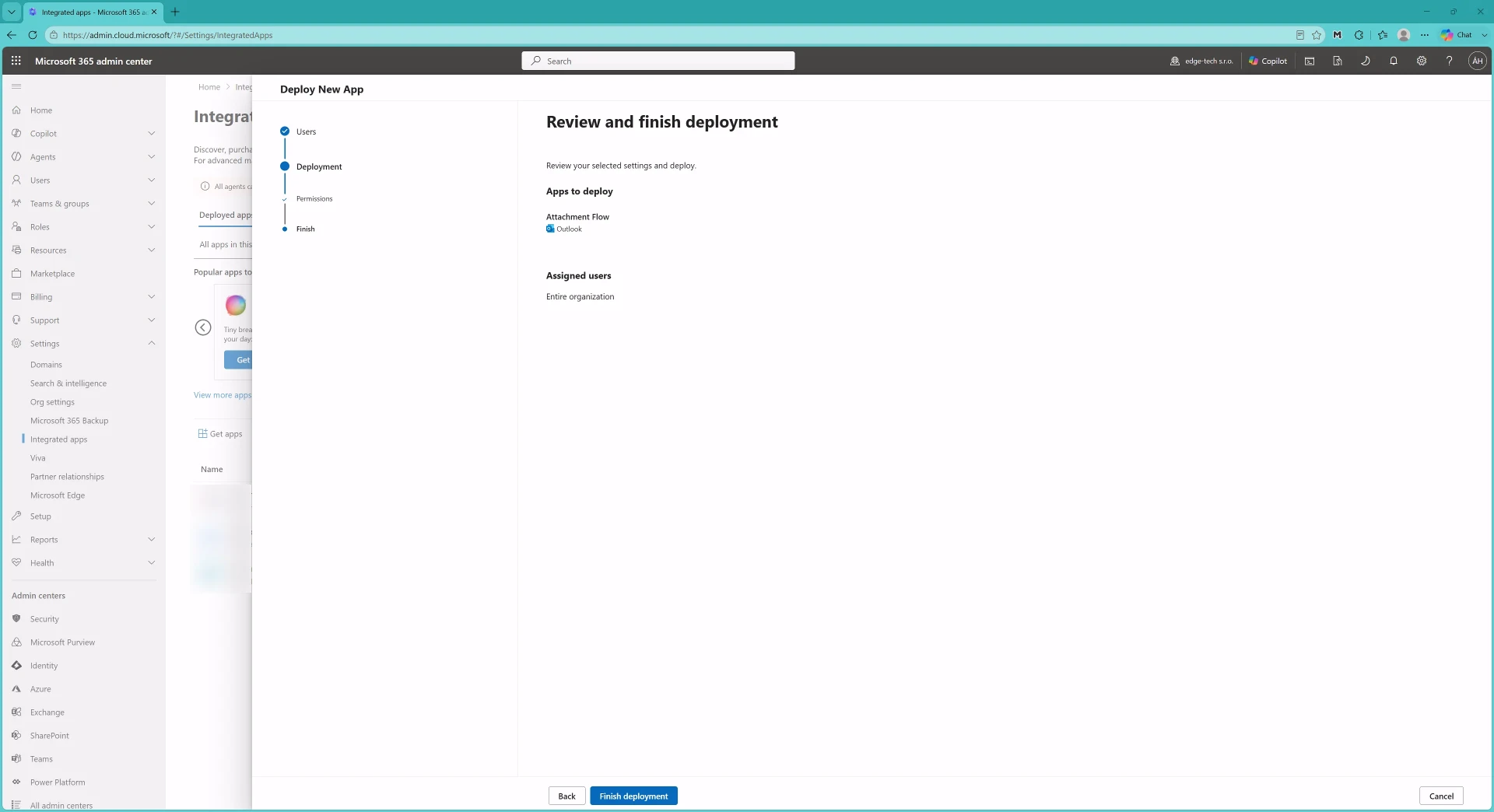
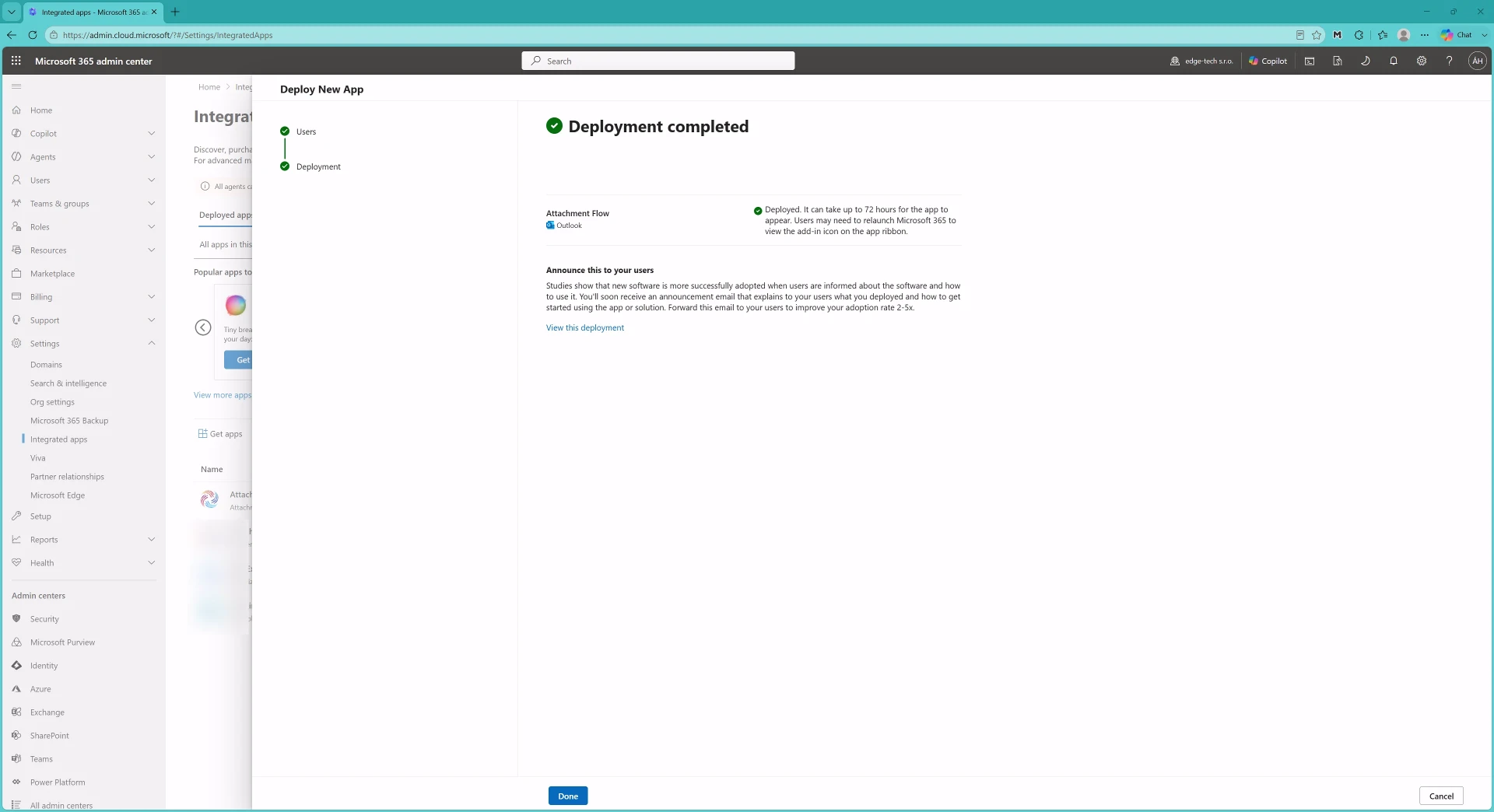
7. Confirm the Installed App
After deployment, Attachment Flow appears in the list of installed integrated applications in the Microsoft 365 Admin Center.
Important
The add-in may not appear immediately in Outlook. It can take up to 72 hours for Microsoft 365 deployment changes to reach all users. Users may need to restart Outlook or sign in again to Outlook on the web.
Permissions used by Attachment Flow
Attachment Flow requests the permissions below so users can save emails and attachments to Microsoft 365 storage, browse allowed locations, and insert Microsoft 365 files or links back into Outlook.
- Office add-in permission: ReadWriteItem - allows the add-in to work with the current Outlook item, including reading selected email or attachment content and adding links or file attachments to a message.
- User.Read - signs in the current user and reads basic profile information.
- User.ReadBasic.All - allows the app to read basic profile information for users in the organization.
- openid, profile, email - standard sign-in permissions used by Microsoft identity.
- offline_access - allows the app to keep the user signed in and refresh access tokens without asking the user to sign in again every time.
- Files.ReadWrite.All - allows users to read, upload, update, and manage files they can access in OneDrive and Microsoft 365 file storage.
- Sites.ReadWrite.All - allows users to read and write files in SharePoint sites they can access.
- Team.ReadBasic.All - allows the app to list basic information about Microsoft Teams so users can choose Teams-related storage locations.
- Channel.ReadBasic.All - allows the app to list basic channel information for selected Teams.
- Chat.Read - allows the app to read chat information needed to show supported Teams chat file locations.
Attachment Flow uses delegated Microsoft Graph permissions. The application acts on behalf of the signed-in user and Microsoft 365 permissions in your tenant continue to apply.