
Drag & Drop Uploads
Upload to the Current Folder or a Child Folder
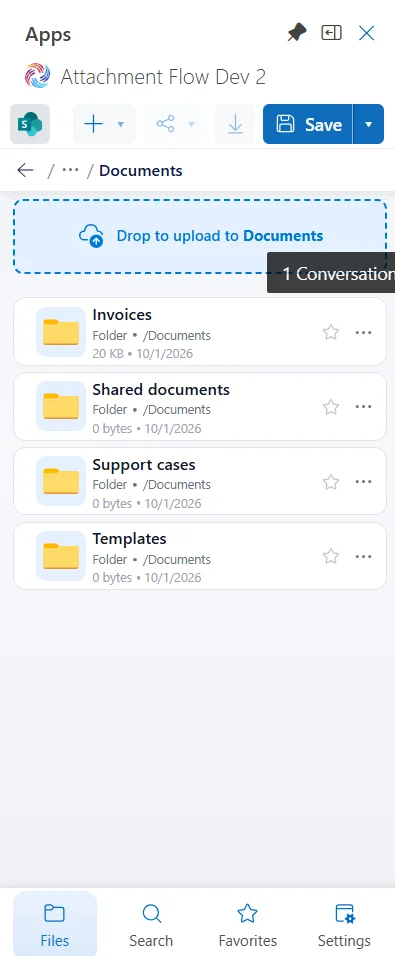
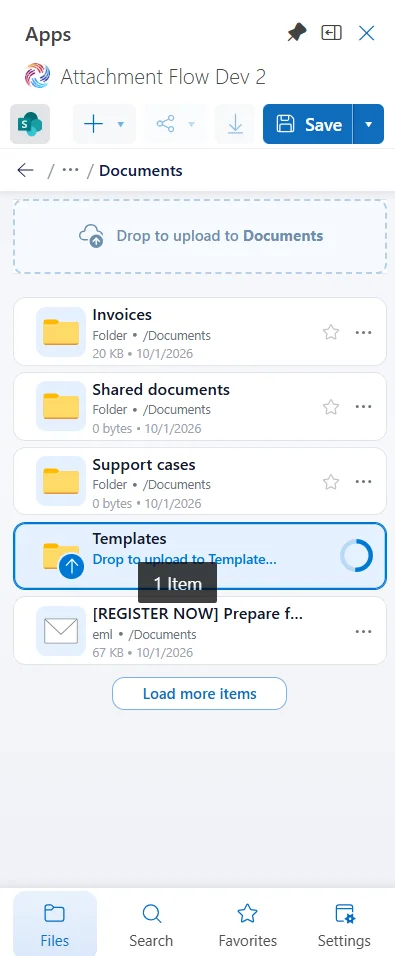
Drag files or supported Outlook messages and attachments into the Files page. Release over the current folder upload area to save there, or over a folder row to save in that folder. The destination highlights while you drag.
Files keep their original names and formats. If a name already exists in the destination, Attachment Flow opens the save items sheet so you can rename the conflicting item and retry.
Open Folders While Dragging
Pause over a folder row to start its circular countdown. When it finishes, the folder opens and you can continue dragging to a deeper destination. Release before the countdown ends to upload to the highlighted folder instead.
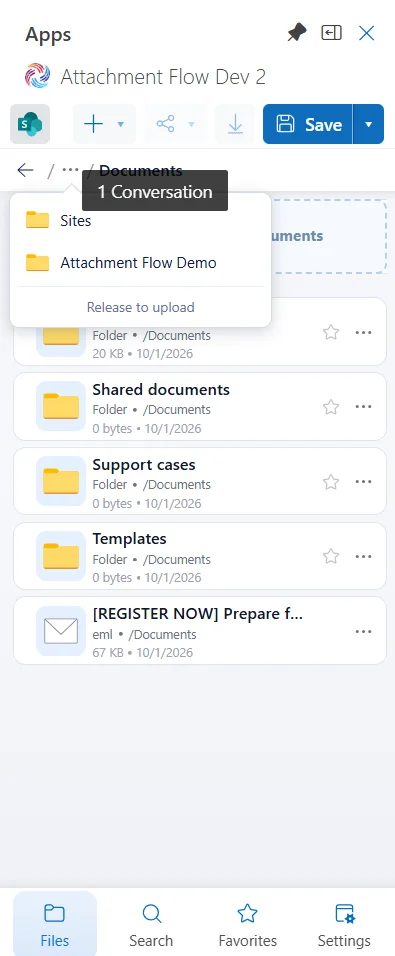
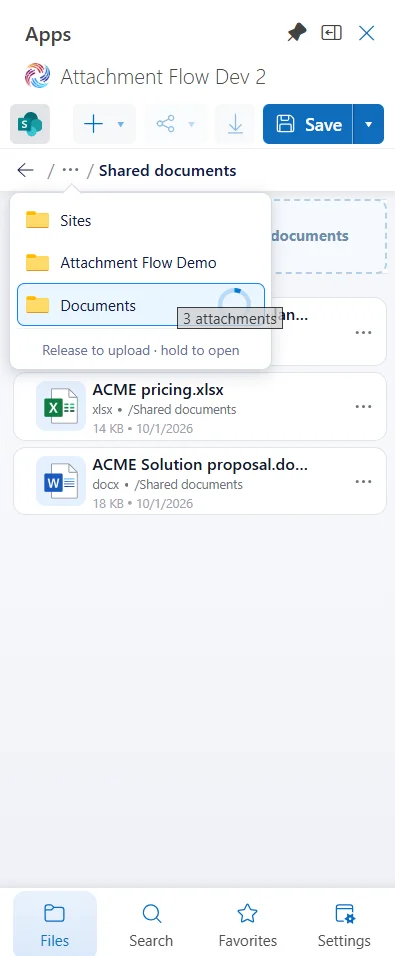
To reach a parent folder, drag over the breadcrumb's three-dot menu. It opens the ancestor list. Hover over a folder there to navigate to it, or release over it to upload directly to that folder. You can change the countdown or turn folder opening off in Settings.