
Settings
Overview
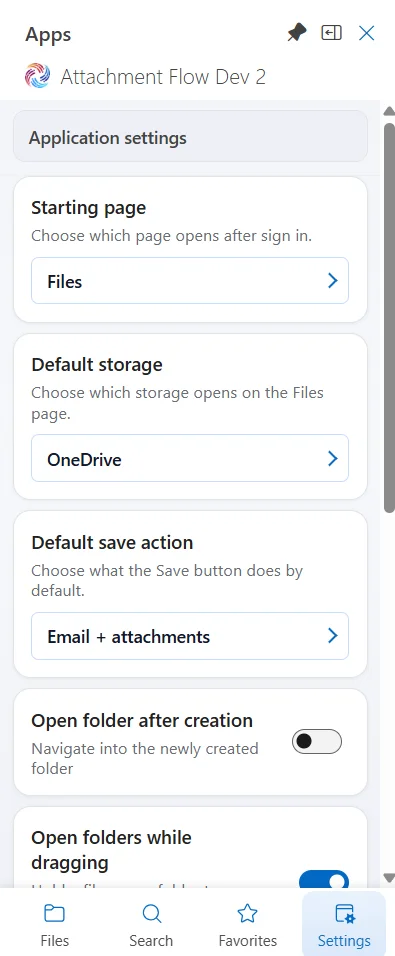
Settings control how Attachment Flow behaves and which Microsoft 365 locations are available in the add-in.
Application settings
- Starting page - choose Files, Favorites, or Search as the page that opens after sign-in.
- Default storage - choose OneDrive, SharePoint, or Teams when the Files page first opens.
- Default save action - choose what the main Save button does by default.
- Open folder after creation - automatically navigate into a newly created folder.
- Open folders while dragging - navigate into a folder after a configurable hover countdown.
- SharePoint metadata filling - show metadata editing after SharePoint uploads and enable manual metadata editing for SharePoint files.
- Manage your SharePoint sites - add or remove SharePoint sites available in Attachment Flow.
- Manage your Teams - add or remove Teams available in Attachment Flow.
- Clear cached data - reset app settings, favorites, selected sites and teams, and onboarding progress.
Starting Page and Default Storage
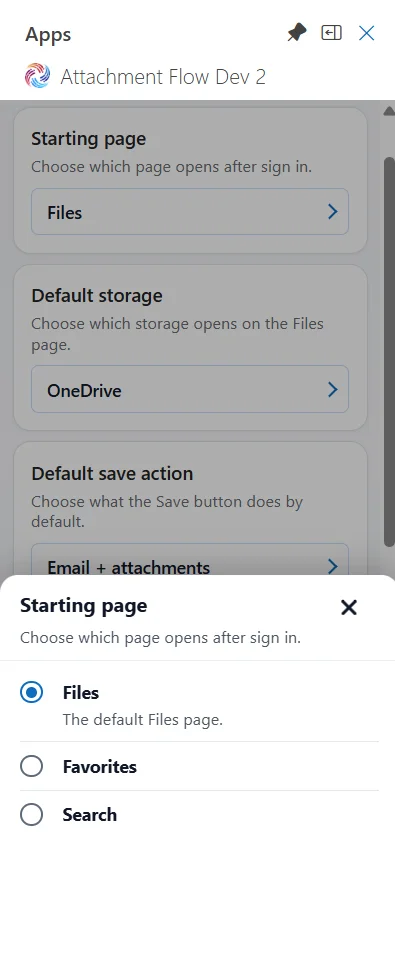
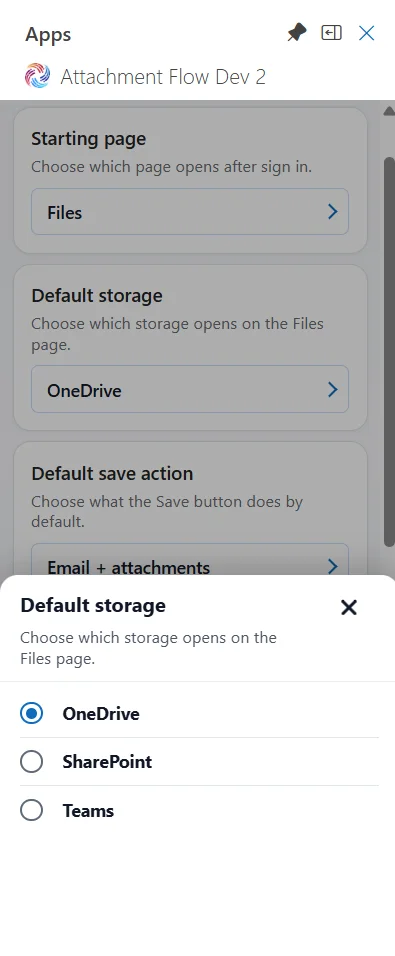
Choose Files, Favorites, or Search under Starting page to decide where Attachment Flow opens after sign-in. Files is the initial setting.
Choose OneDrive, SharePoint, or Teams under Default storage to decide which storage opens when you first visit Files. OneDrive is the initial setting. You can still switch storage from the Files page.
Open Folders While Dragging
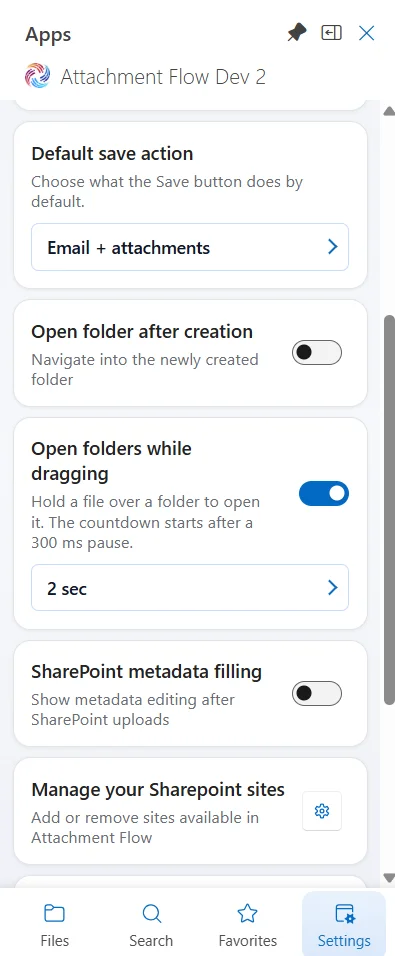
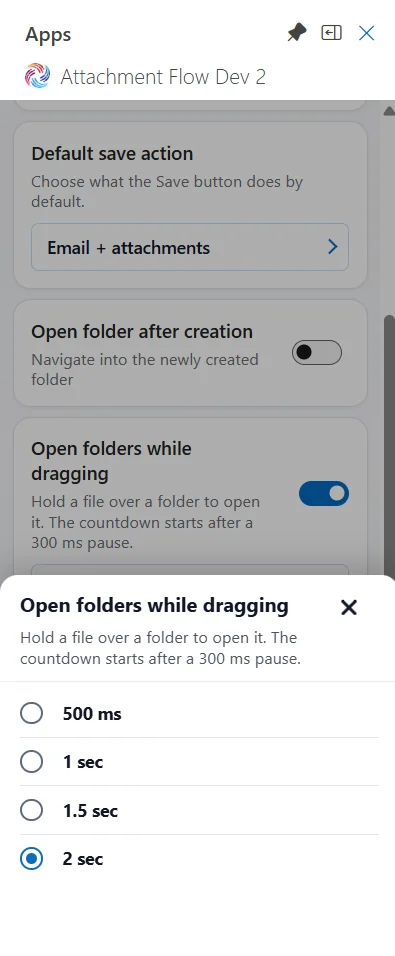
Turn on Open folders while dragging to navigate by holding a dragged item over a folder. After a 300 ms pause, a countdown appears. Choose 500 ms, 1 sec, 1.5 sec, or 2 sec for that countdown; the initial value is 1 sec. Turn the switch off if you only want to drop directly onto folders.
SharePoint Metadata Filling
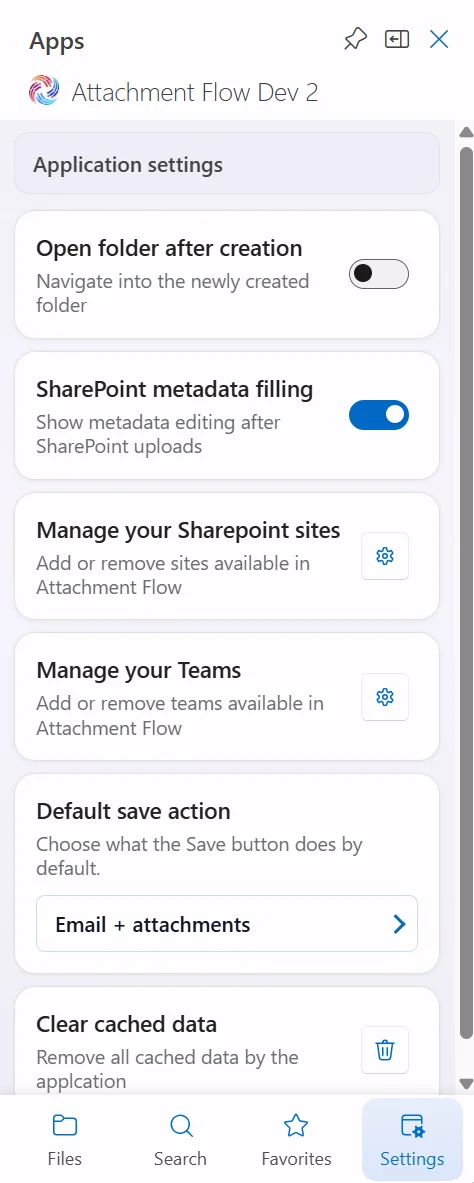
Turn on SharePoint metadata filling to open metadata editing after SharePoint uploads when editable metadata exists. The setting also enables the Edit metadata action for existing SharePoint files.
Turn it off when you do not want Attachment Flow to open the metadata editor after uploads.
Default Save Action
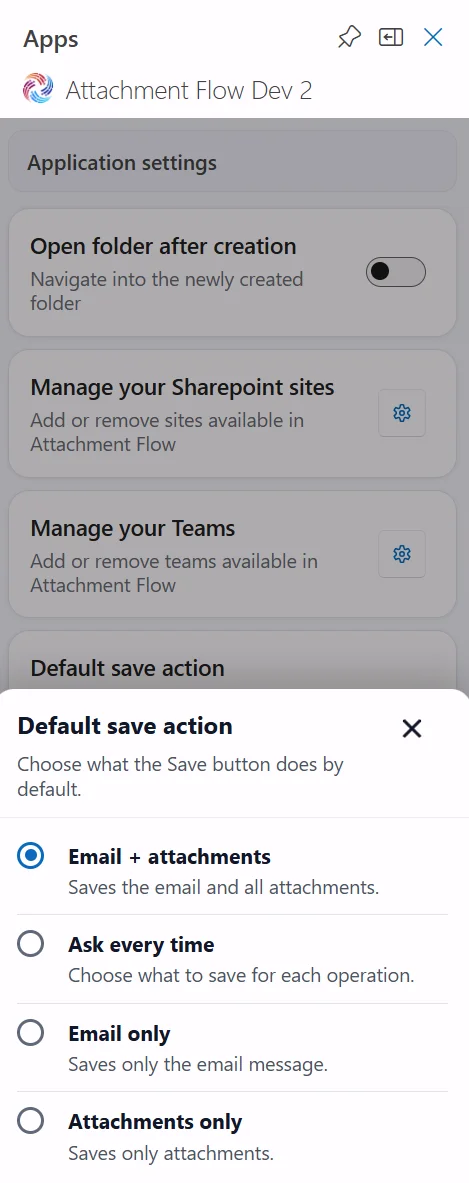
The default save action controls what happens when you click the main Save button without opening its dropdown menu.
Options
- Email + attachments - saves the email and all attachments.
- Ask every time - opens the selection dialog for each save operation.
- Email only - saves only the email message.
- Attachments only - saves only the email attachments.
Clear App Data
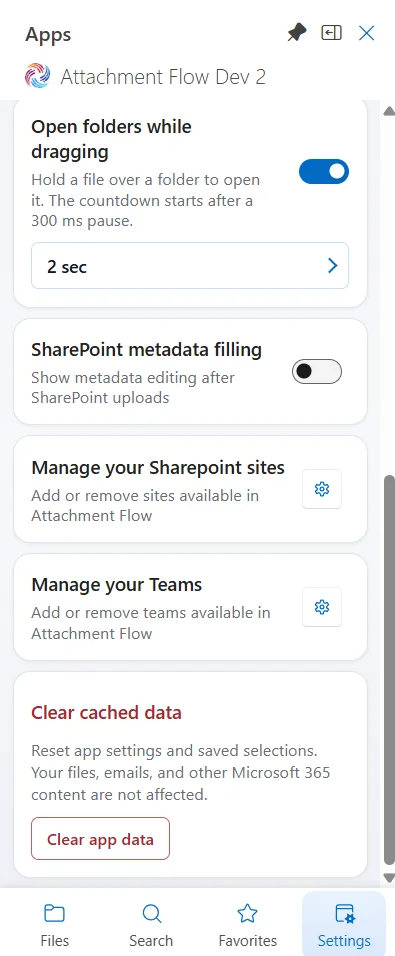
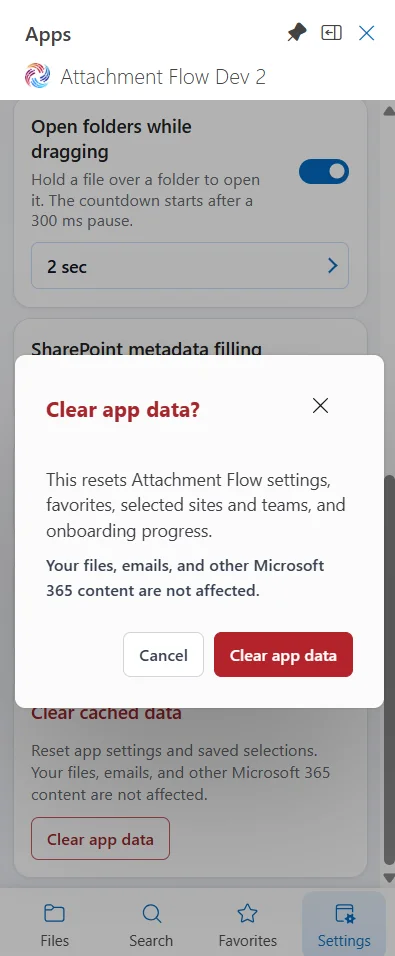
Under Clear cached data, click Clear app data and confirm to reset Attachment Flow settings, favorites, selected SharePoint sites and Teams, and onboarding progress. Your files, emails, and other Microsoft 365 content are not affected.