
File & Folder List
1. Overview
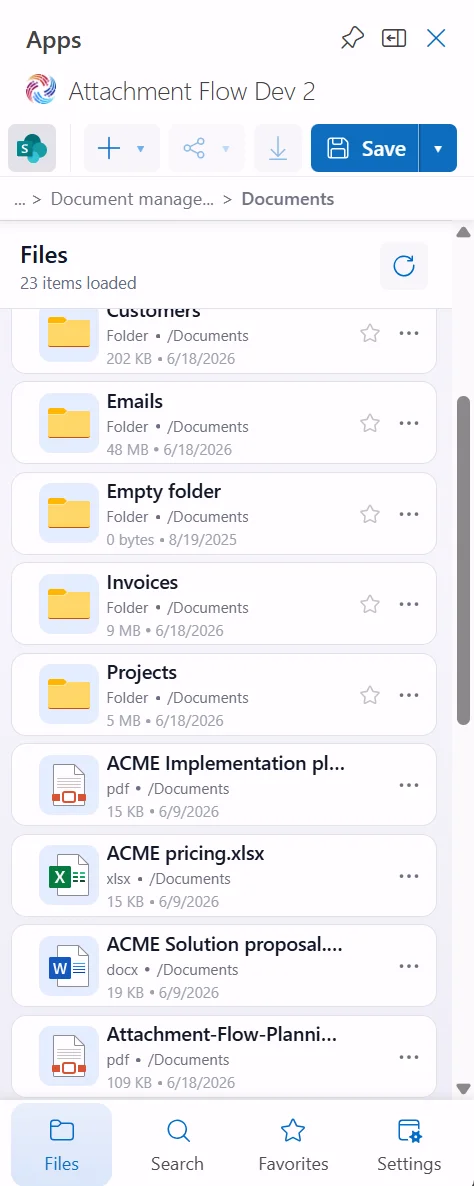
The Files page is the main workspace in Attachment Flow. From here you can browse folders and files from OneDrive, SharePoint, and Teams, then save Outlook content or share existing files.
Main areas
- Storage selector - choose the active Microsoft 365 storage location.
- Top action bar - create folders, upload files, share selected files, download files, and save Outlook content.
- Breadcrumb - shows the current folder, with a Back button and a menu of parent locations.
- File and folder list - displays item name, type, location, size, and modified date.
- Bottom navigation - switch between Files, Search, Favorites, and Settings.
2. Top Action Bar
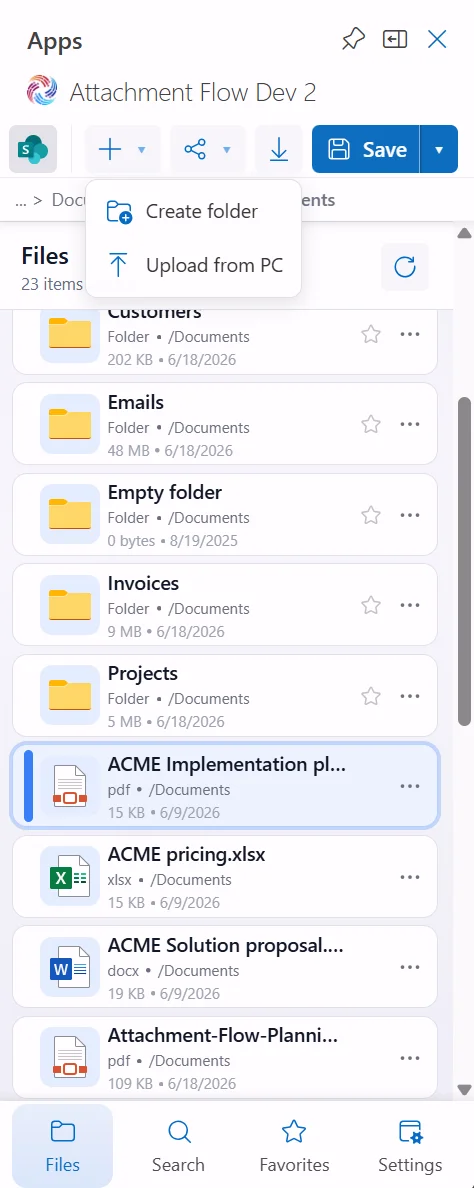
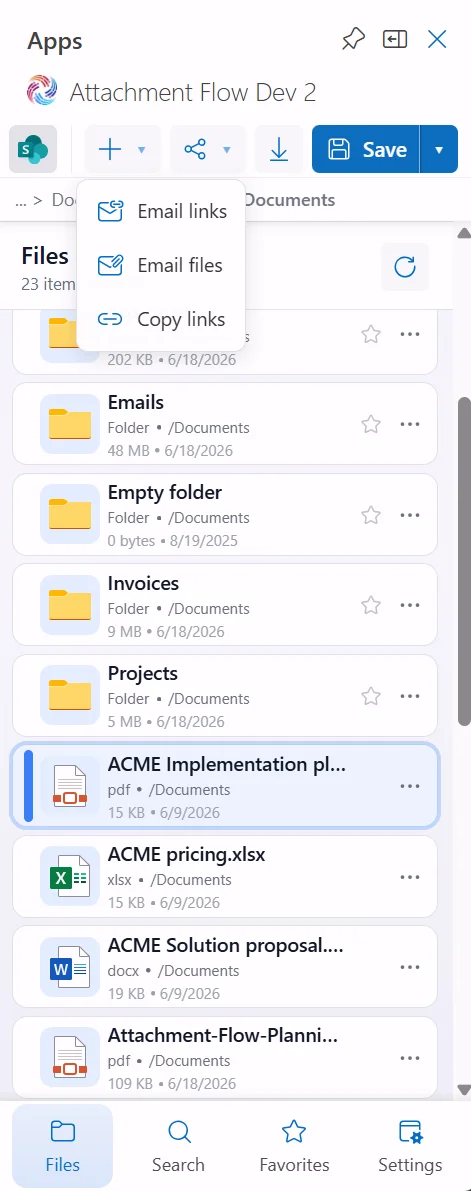
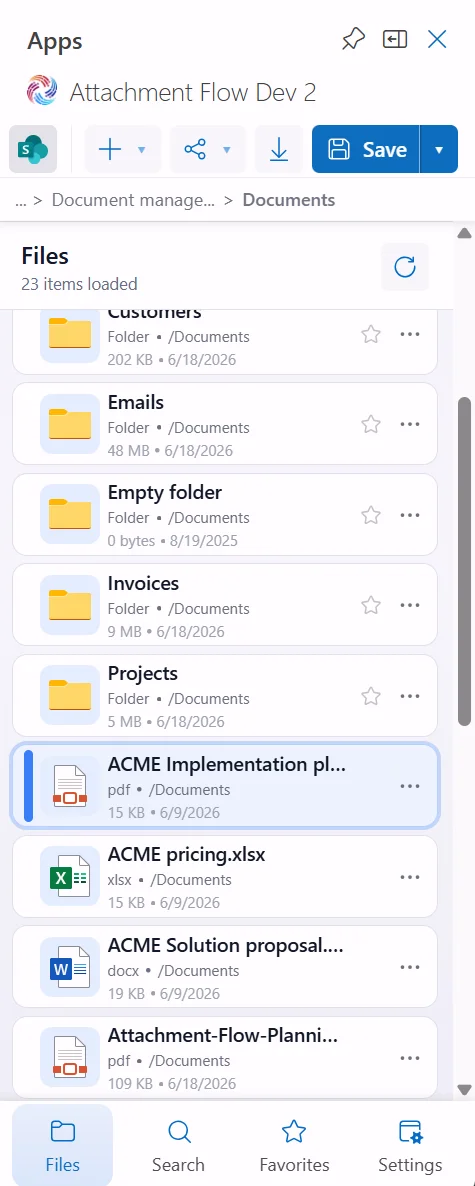
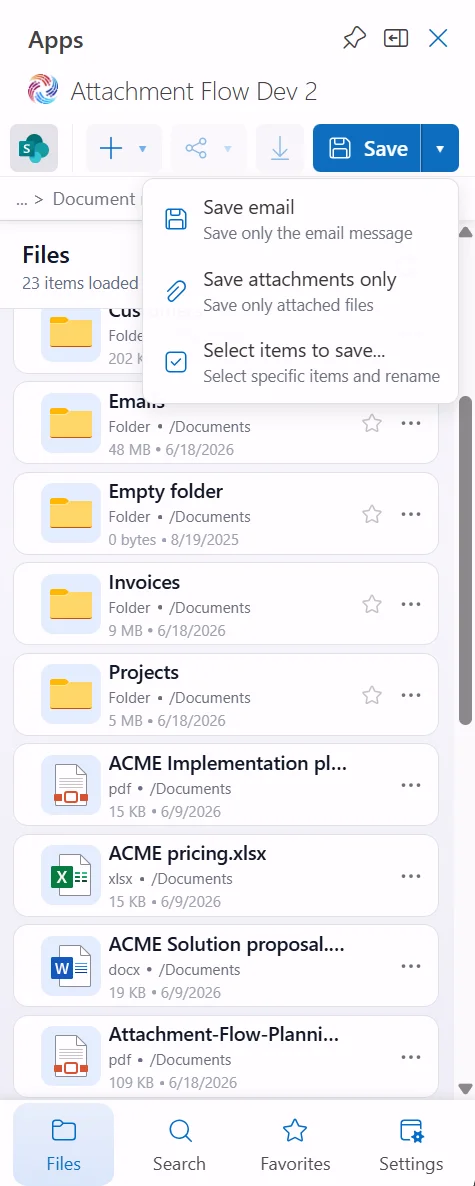
The top action bar gives quick access to the most common file operations. Some actions become active after you select a file or when an Outlook message can be saved.
Create menu
- Create folder - create a folder in the current location.
- Upload from PC - upload a local file into the current folder.
Share menu
- Email links - insert secure links to selected files into an Outlook email.
- Email files - attach selected files as regular email attachments.
- Copy links - copy links for selected files to the clipboard.
Download
Select a file, then click the download icon to download it to your computer.
Save menu
- Save email + attachments - save the message and all its attachments.
- Save email - save only the current email message.
- Save attachments only - save only files attached to the email.
- Select items to save - choose specific email items and rename them before upload.
3. Breadcrumb
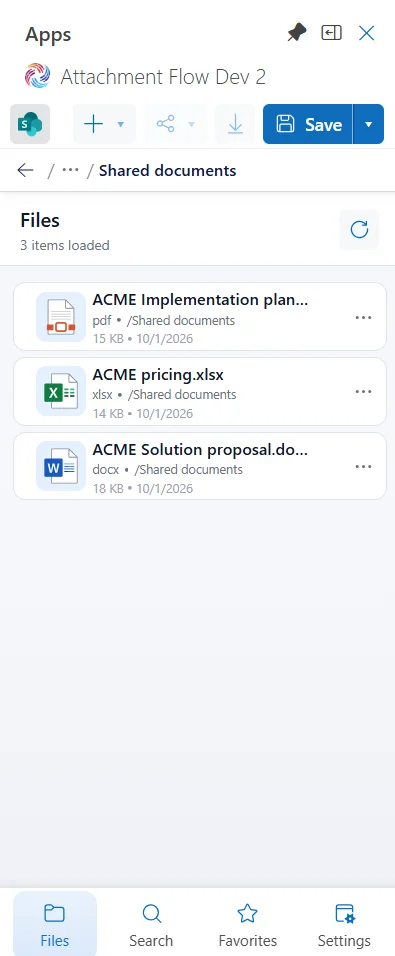
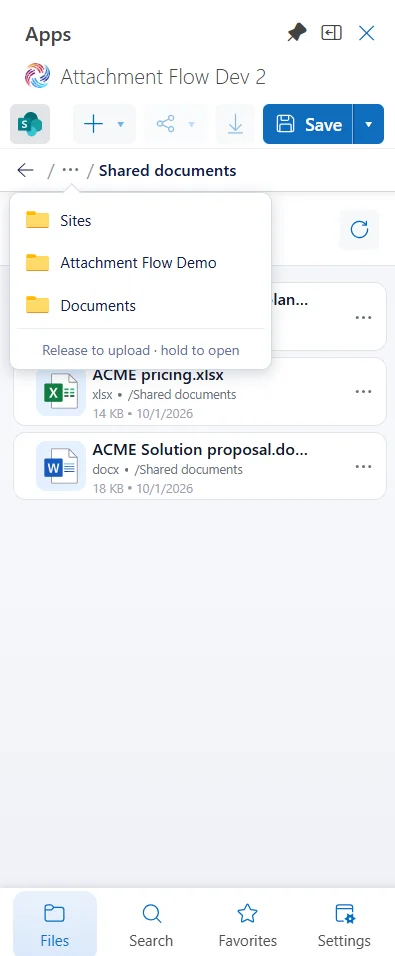
The breadcrumb appears below the action bar and names the current folder. Use the Back arrow to open its immediate parent, or open the three-dot menu to choose any folder higher in the path.
4. File and Folder Rows
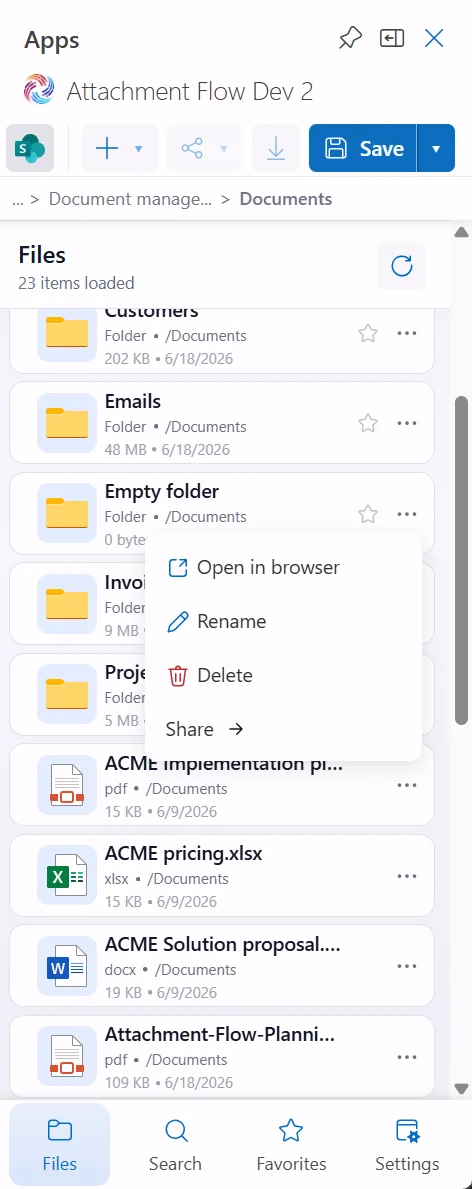
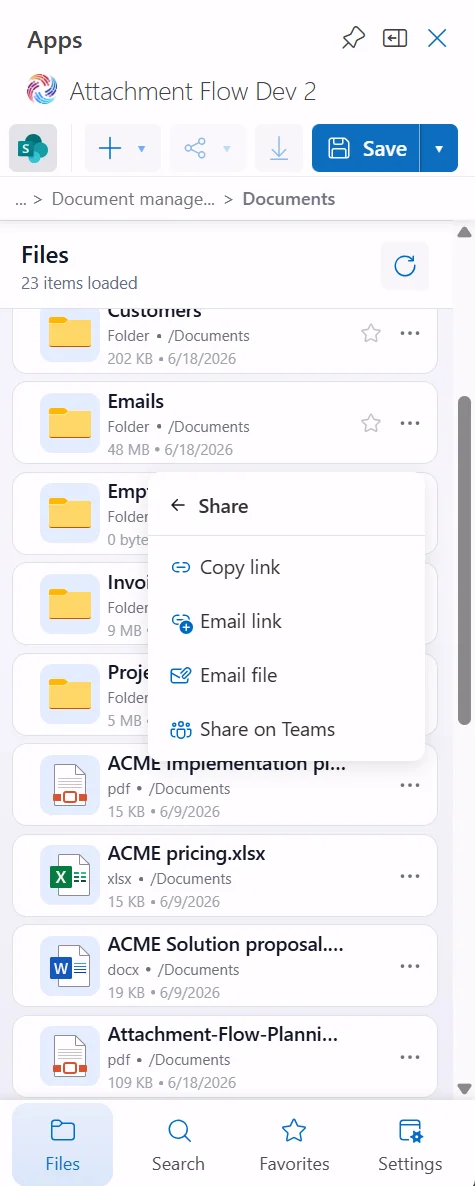
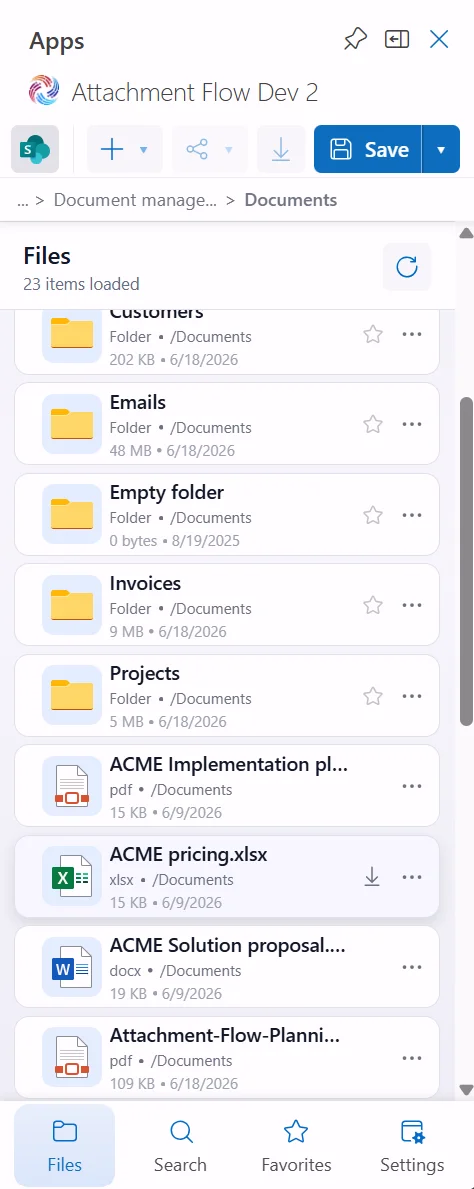
Each row represents a file or folder. Folder rows can be opened by selecting them. File rows can be selected for download, sharing, or email actions.
Row details
- Icon - identifies folders and common file types such as PDF, Excel, and Word.
- Name - displays the file or folder name. Long names are shortened in the list.
- Metadata - shows item type, folder path, size, and modified date.
- Favorite star - marks folders as favorites for quick access.
- More menu - opens item-specific actions.
Item menu actions
- Open in browser - open the item in Microsoft 365.
- Rename - change the item name.
- Delete - remove the item from storage.
- Share - open sharing options for the item.
Share submenu actions
- Copy link - copy a link to the item.
- Email link - insert the item as a link in an Outlook email.
- Email file - attach the item as a file.
- Share on Teams - share the item through Microsoft Teams.
5. Favorites From the File List
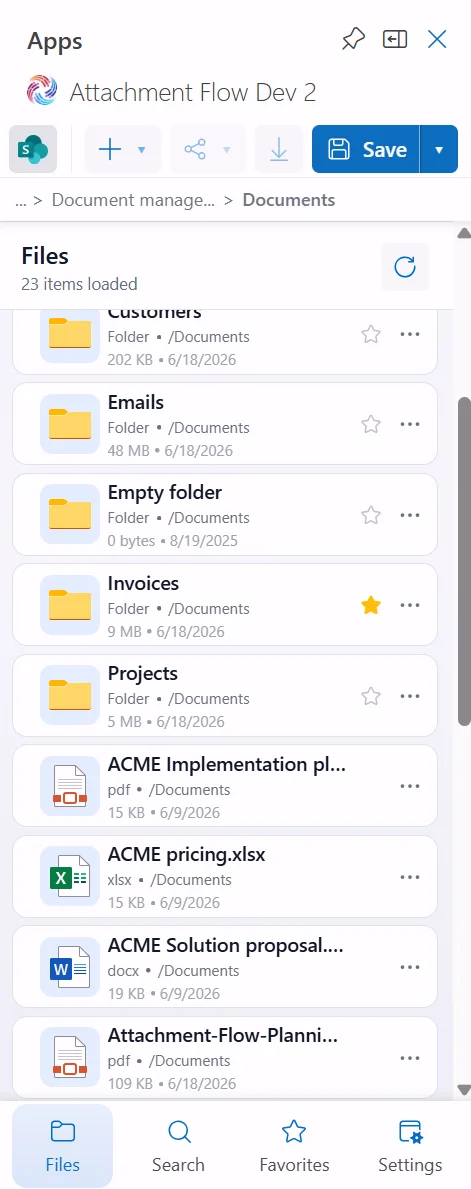
Click the star on a folder row to add it to Favorites. A filled yellow star means the folder is already saved as a favorite.
Favorites can come from OneDrive, SharePoint, or Teams. This makes frequently used folders available from the Favorites tab regardless of the storage you are currently browsing.