
Onboarding
1. Welcome Overview
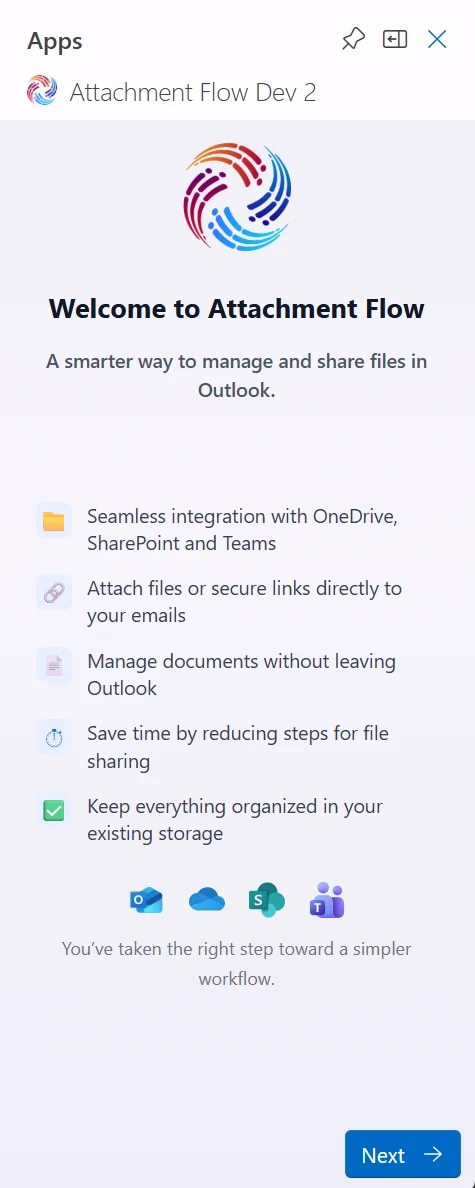
When you open Attachment Flow for the first time, the onboarding screen introduces the main workflow: manage and share files from Outlook without leaving the add-in.
Key capabilities
- Work with files from OneDrive, SharePoint, and Teams.
- Attach files or secure links directly to Outlook emails.
- Manage documents from inside Outlook.
- Reduce the number of steps needed for file sharing.
- Keep files organized in your existing Microsoft 365 storage.
Click Next to continue.
2. Select Sharepoint Sites
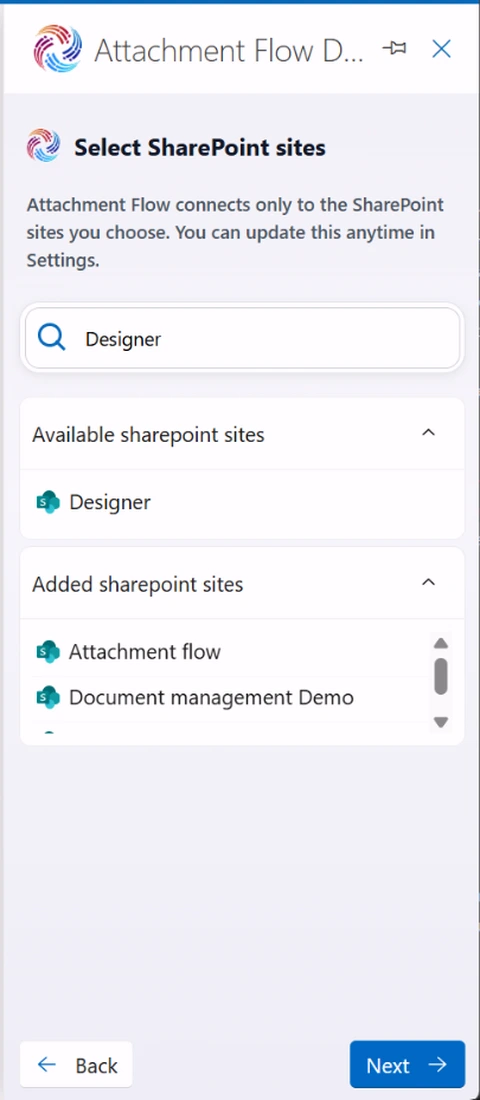
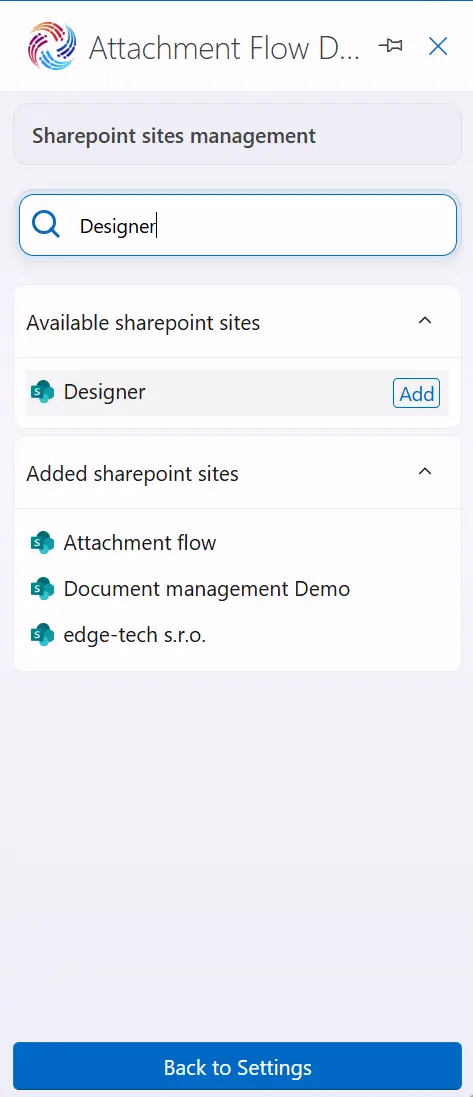
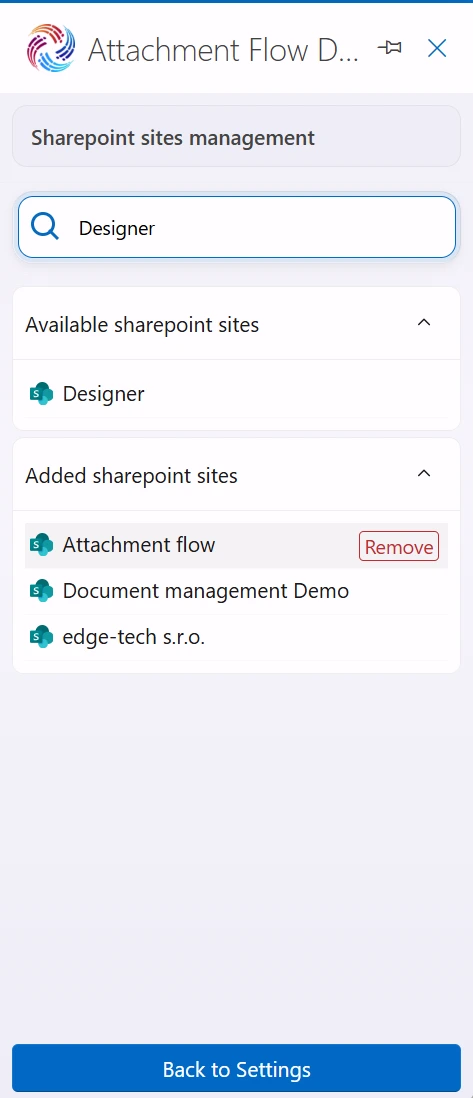
Attachment Flow connects only to the SharePoint sites you choose. This keeps your workspace simple, focused, and relevant to your daily work.
Steps
- Use the search box to find SharePoint sites in your organization.
- Click the Add button to add site to your workspace.
- You can remove any site later using the Remove button.
- Once you've selected the sites you want, click Next.
Information
Only the selected sites will appear in Attachment Flow when browsing or saving attachments. You can update this selection anytime in Settings.
Tip
If no results appear, try adjusting your search term - the list shows only SharePoint sites you have access to.
3. Select Teams
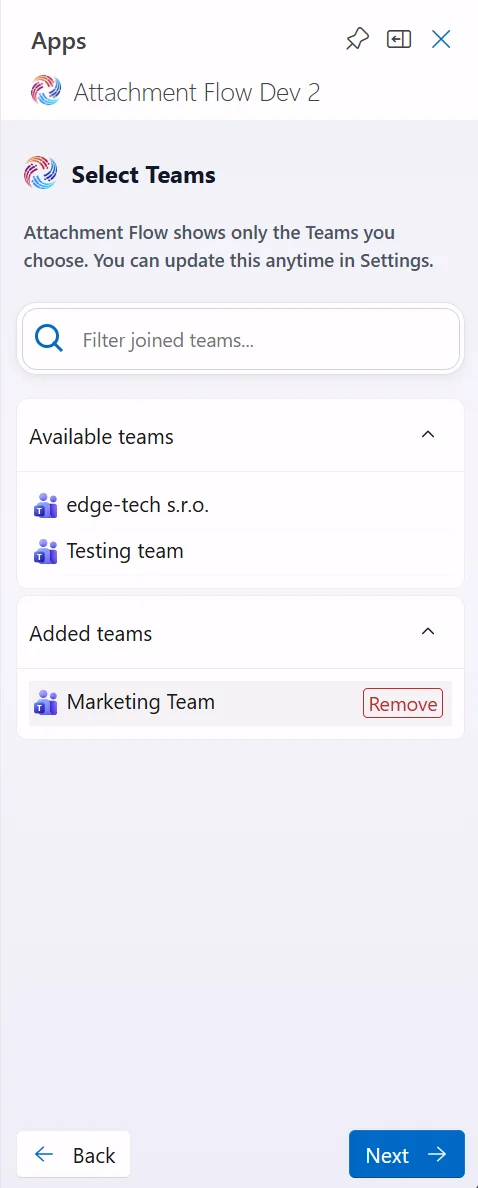
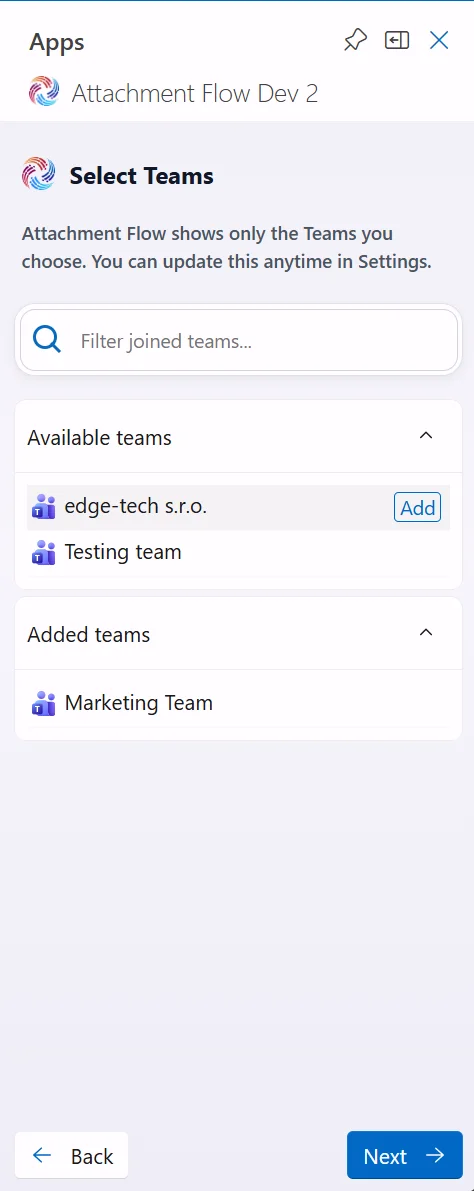
Attachment Flow shows only the Teams you choose. This keeps the file browser focused on the workspaces you actually use.
Steps
- Use Filter joined teams to find Teams you belong to.
- Click Add to make a Team available in Attachment Flow.
- Use Remove to hide a Team from your Attachment Flow workspace.
- Click Next after selecting the Teams you want to use.
Information
Team selection can be updated later in Settings. Removing a Team from Attachment Flow does not delete or change anything in Microsoft Teams.