
SharePoint Metadata
Enable Metadata Filling
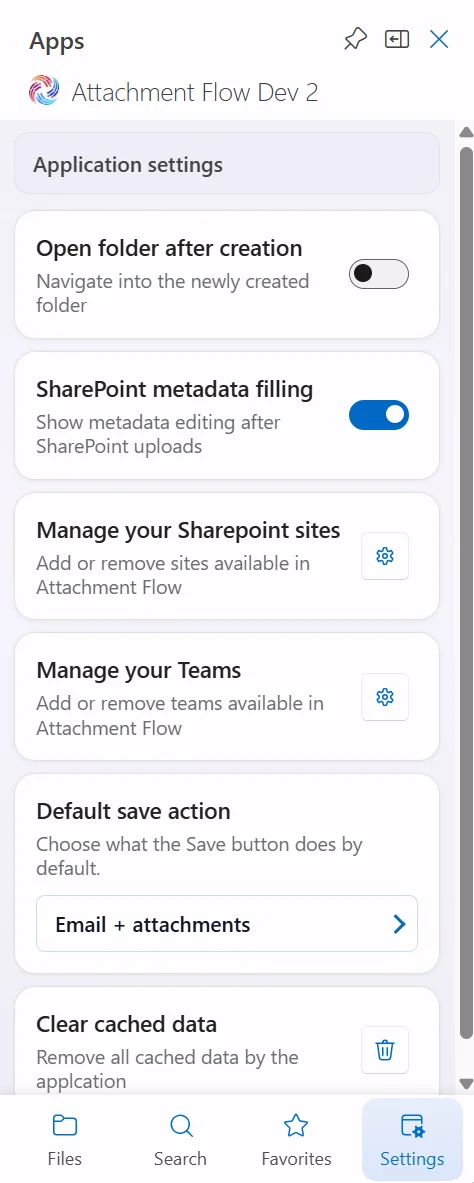
Open Settings and turn on SharePoint metadata filling. When this setting is enabled, Attachment Flow shows the metadata editor after SharePoint uploads when editable metadata is available for the uploaded document.
The same setting also controls manual editing from SharePoint file rows. If it is turned off, the Edit metadata action is not shown.
Automatic Metadata Editor
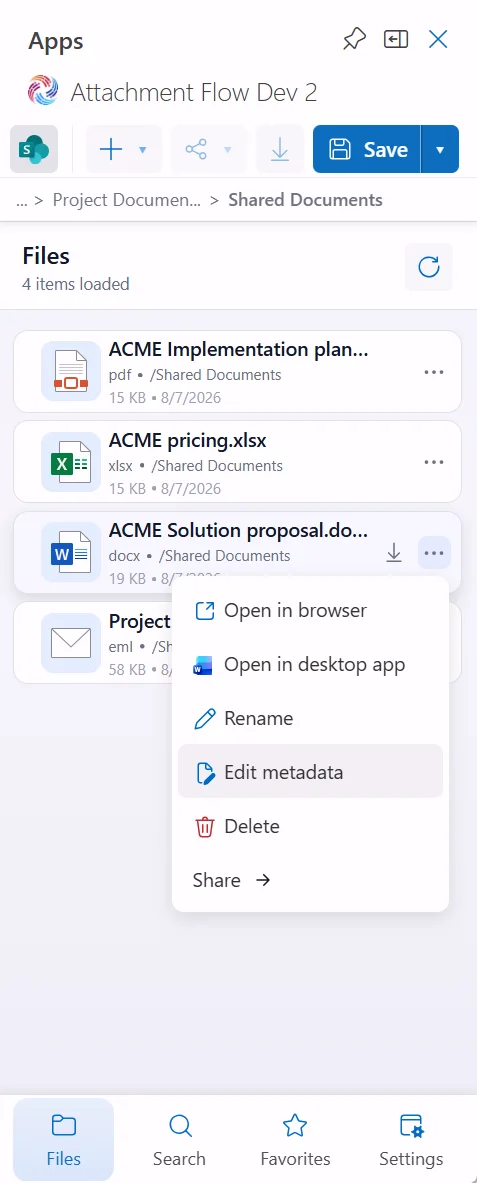
After a SharePoint upload finishes, the Document metadata bottom sheet opens when editable fields are found. Upload and metadata saving are separate steps: the file is already uploaded, and clicking Save metadata writes the selected metadata values to SharePoint.
If multiple documents were uploaded, the editor lets you move between documents. You can fill values separately for each document, or use Apply these values to all documents to copy the selected content type and metadata values to every document in the current metadata session.
Edit Metadata Later
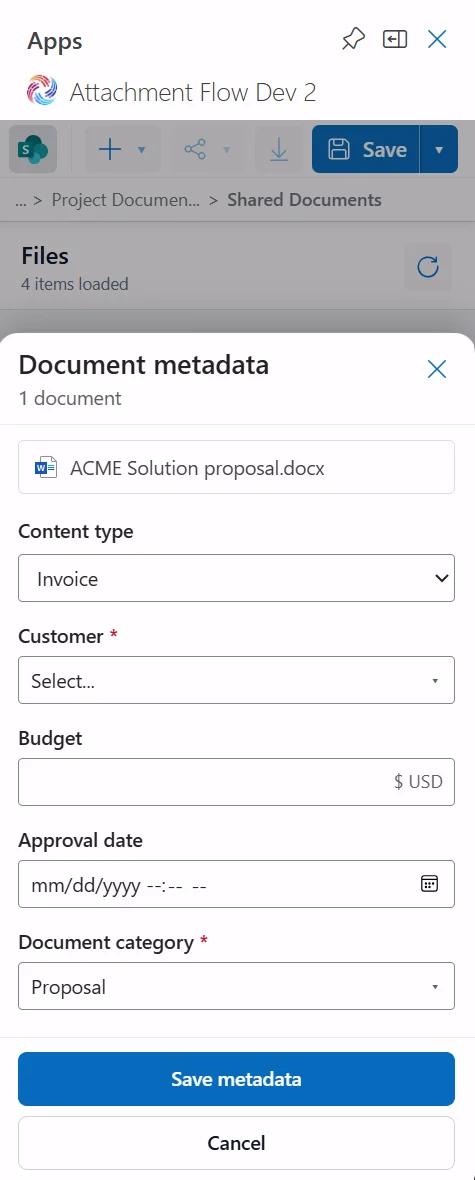
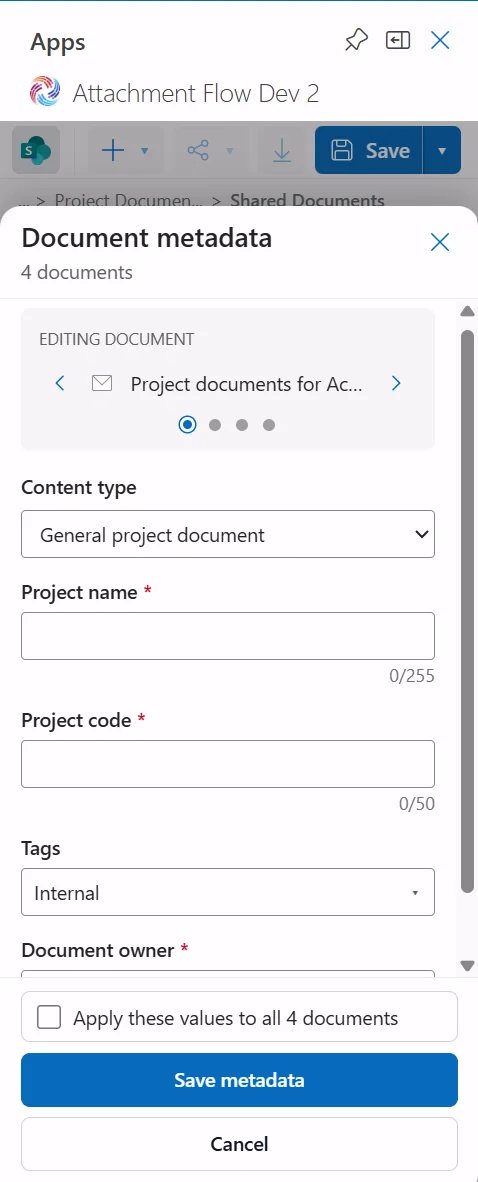
For an existing SharePoint document, open the file row menu and choose Edit metadata. Attachment Flow loads the current SharePoint metadata values and opens the same Document metadata editor.
Edit metadata is available for SharePoint file rows only. It is not shown for OneDrive files, Teams files, folders, or when SharePoint metadata filling is disabled.
Content Types
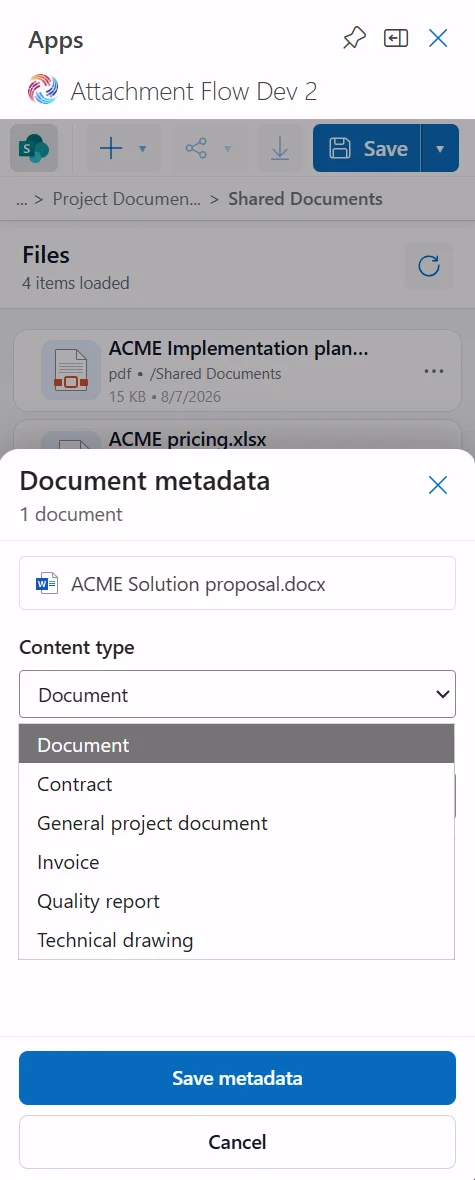
If the SharePoint library has more than one document content type, the editor shows a Content type selector. Changing the content type reloads the editable fields for that selected type.
Values for fields with the same internal name are kept when possible. Required fields and available properties follow the selected content type.
Supported Metadata Types
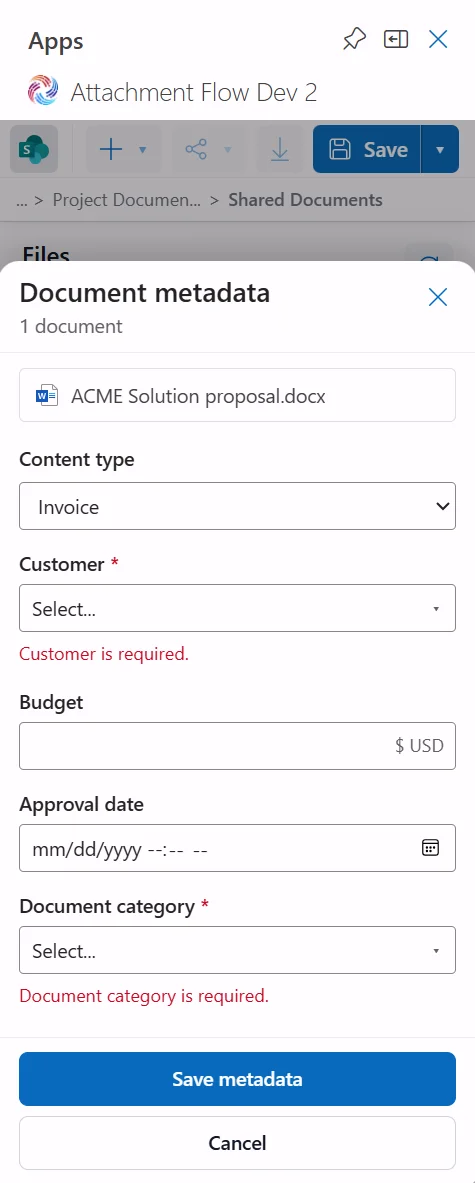
Attachment Flow shows editable SharePoint columns that it can save. Hidden, read-only, calculated, and system columns are skipped.
Supported fields
- Text and multiline text.
- Choice and multiple choice.
- Number and currency.
- Date and time, including date-only fields.
- Yes/No.
- Person or Group, including multiple values.
- Lookup, including multiple values.
- Hyperlink. Picture fields are not shown as hyperlink fields.
Required fields are marked and validated before saving. Text length and number rules such as minimum value, maximum value, and decimal-place limits are also validated in the editor when SharePoint provides those rules.